How to Recover Lost Files from Hard Drive Step-by-Step Hard Disk Data Recovery Guide
Follow this comprehensive tutorial to recover lost partitions, formatted drive volumes, deleted media, and emptied Recycle Bin files with the WindowsUtils Data Recovery Tool.
Before You Begin with WindowsUtils Hard Disk Data Recovery Tool
Review these essential prerequisites to ensure high-speed, 100% uninterrupted processing on your Windows system.
Stop writing new data to
Stop writing new data to the affected hard drive or SSD immediately to prevent overwriting
Ensure a secondary storage drive
Ensure a secondary storage drive or external USB drive is connected to receive recovered data
Run WindowsUtils as an Administrator
Run WindowsUtils as an Administrator for low-level direct sector access
Keep your PC connected to
Keep your PC connected to uninterrupted power during long multi-terabyte scans
How to Use WindowsUtils Hard Disk Data Recovery Tool
Follow this step-by-step developer tutorial to execute your conversion, processing, or repair workflows locally on your Windows machine with zero cloud dependency.
Follow These Steps
From binary setup to batch processing and final output verification, here is how to use WindowsUtils Hard Disk Data Recovery Tool.
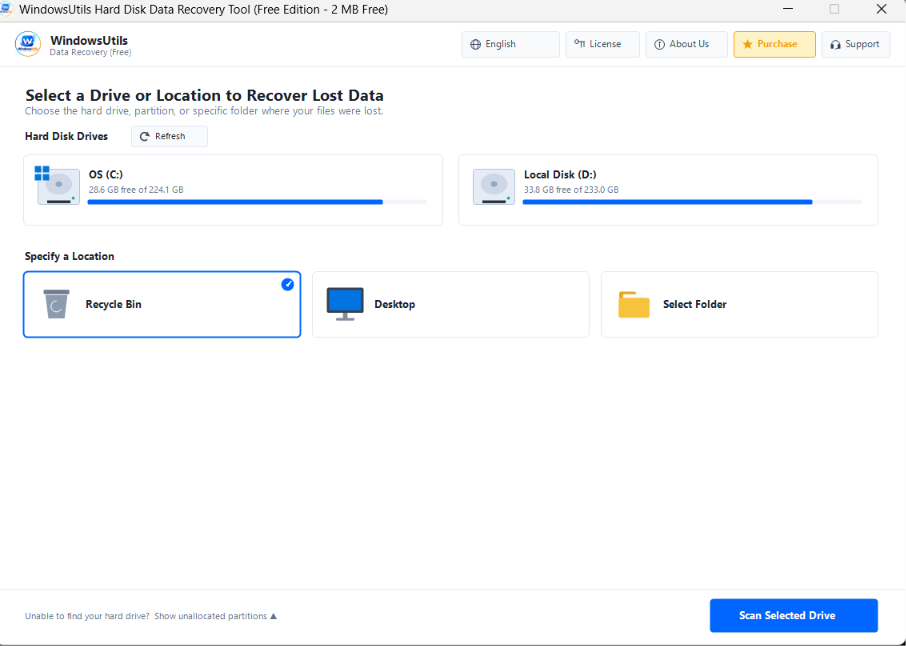
Select Target Drive or Location
Launch WindowsUtils Data Recovery. From the clean home screen, choose the storage drive (e.g., OS C: or Local Disk D:) or specify a focused location such as Recycle Bin, Desktop, or a specific folder where data was lost. Click 'Scan Selected Drive' to begin.
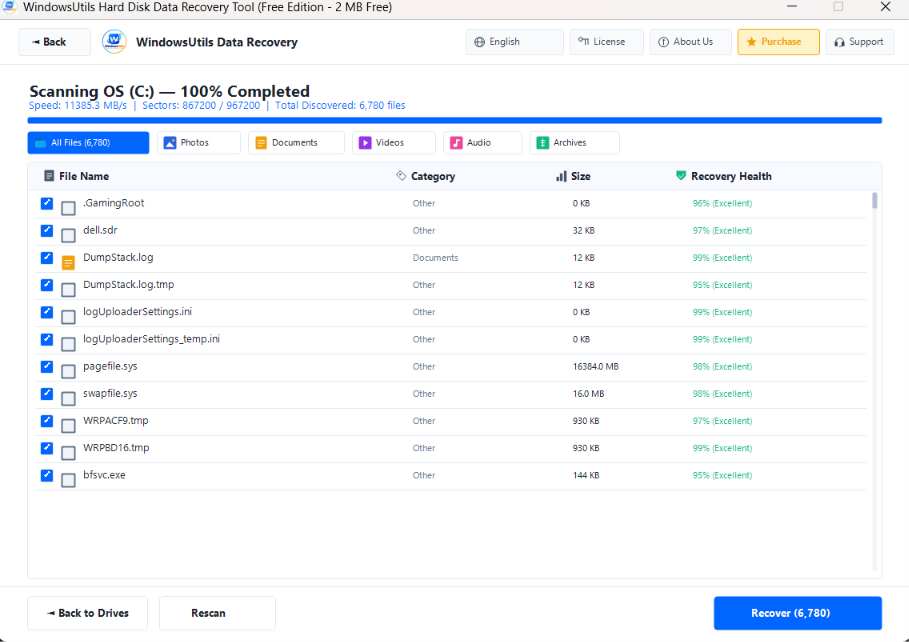
Deep Sector Scanning & Live File Categorization
The high-speed scan engine processes at 11,000+ MB/s, scanning through sectors and cataloging deleted records in real time. Filter files by category tabs: Photos, Documents, Videos, Audio, and Archives. Review individual Recovery Health percentages (up to 99% Excellent) before recovering.
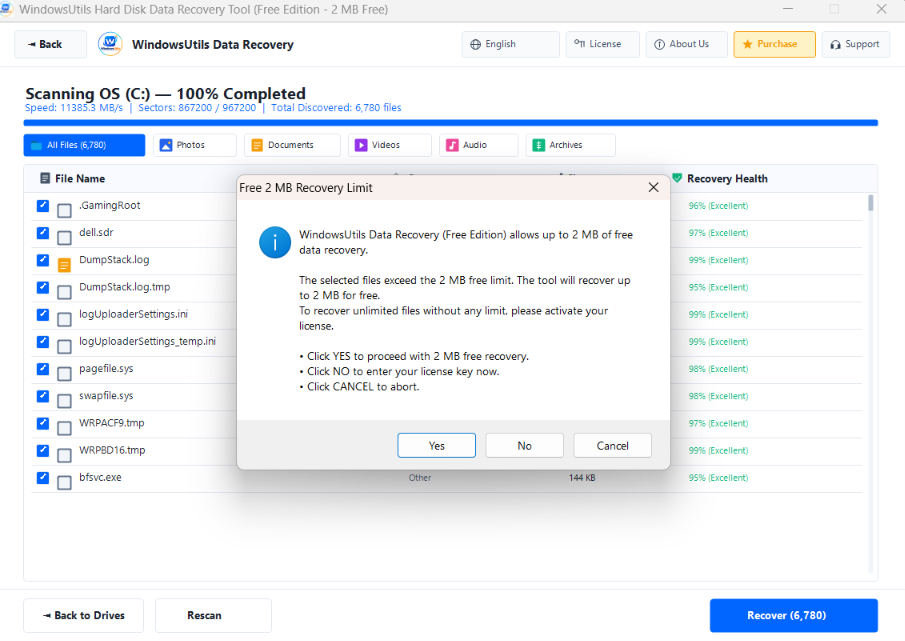
Free Edition 2 MB Recovery Limit Review
Select the checkboxes next to your target files and click 'Recover'. The Free Edition allows recovering up to 2 MB of data completely free so you can verify file integrity. Click 'Yes' to proceed with the free quota, or enter your license key for unlimited recovery.
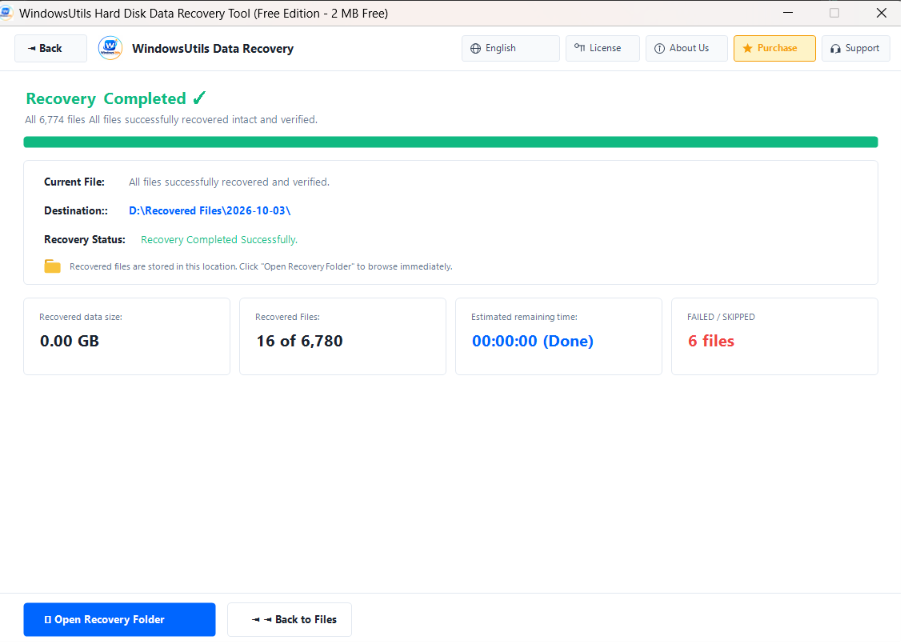
Recovery Completed & Destination Verification
The recovery engine extracts and reconstructs your files with 100% integrity into a safe target directory (e.g., D:\Recovered Files\2026-10-03\). Click 'Open Recovery Folder' to immediately browse and access your restored files.
Why Professionals Choose WindowsUtils Hard Disk Data Recovery Tool
Designed for system administrators, IT consultants, forensics investigators, and corporate teams demanding bit-for-bit precision and uncompromising security.
100% Read-Only Safety
Never writes to or alters your original storage media during disk parsing.
Ultra High-Speed Scan
Clocked at over 11,000 MB/s for lightning-fast disk analysis and file cataloging.
500+ File Formats Supported
Recovers documents, high-res photos, RAW images, 4K video, audio, and compressed archives.
Real-Time File Health Metrics
Instant percentage health rating (e.g. 99% Excellent) so you know file viability before restoring.
Free 2 MB Verification Tier
Extract and verify recovered files up to 2 MB completely free before license purchase.
Preserves Original Folder Trees
Restores directory hierarchies, folder names, timestamps, and metadata intact.
How-It-Works FAQs
Direct, technical answers covering step-by-step procedures, trial capabilities, and security protocols for WindowsUtils Hard Disk Data Recovery Tool.
Yes. WindowsUtils deep-scans raw sectors and rebuilds Master File Table (MFT) traces even after a quick or full Windows format.
Need Help with a Complex Pipeline?
Our Windows systems and email migration engineers are available 24/7/365 for custom advice.
Ready to Recover Your Important Files?
Download the WindowsUtils Hard Disk Data Recovery Tool now and inspect recoverable files in minutes.