Downloading Your Yahoo Mailbox to External Storage: Step-by-Step Archiving Walkthrough
Safeguard your Yahoo Mail account from lockouts and server outages. Export emails, attachments, and folders to external hard drives in PST, MBOX, and EML formats.


Yahoo Mail has served hundreds of millions of users for over two decades. However, unlike Google Takeout, Yahoo does not provide an automated native cloud export tool to package your emails into a downloadable archive.
With Yahoo enforcing inactivity deletion policies (accounts inactive for 12 months may be permanently deleted) and strict spam filters, keeping a local archive of your historic emails on an external USB hard drive is essential. Here is how to do it safely.
1. Why Yahoo Mail Users Need an Offline Backup
Key considerations for Yahoo Mail account holders:
• Account Inactivity Risks: If you don't log into Yahoo Mail at least once a year, Yahoo deactivates the account and deletes all stored emails and attachments permanently.
• Security Breaches: Yahoo has historically suffered massive security incidents. Keeping critical financial receipts and family correspondence offline eliminates cloud exposure.
• Format Independence: Converting Yahoo emails into standard PST, EML, or PDF files ensures you can read your emails even if you close your Yahoo account.
2. Yahoo App Passwords and IMAP Settings
To connect third-party backup software or email clients to Yahoo, you must generate a Yahoo App Password:
Step-by-Step Execution Sequence:
Pro Engineering Tip
Yahoo's incoming server is `imap.mail.yahoo.com`, Port `993`, with SSL enabled.
3. Why Yahoo Lacks a Native One-Click Export
Yahoo does not offer a Takeout-style feature. While you can request your personal account data via Yahoo's Privacy Dashboard, this process can take up to 30 days and often delivers raw JSON metadata rather than convenient, searchable email containers.
4. Automated Download to External Hard Drive
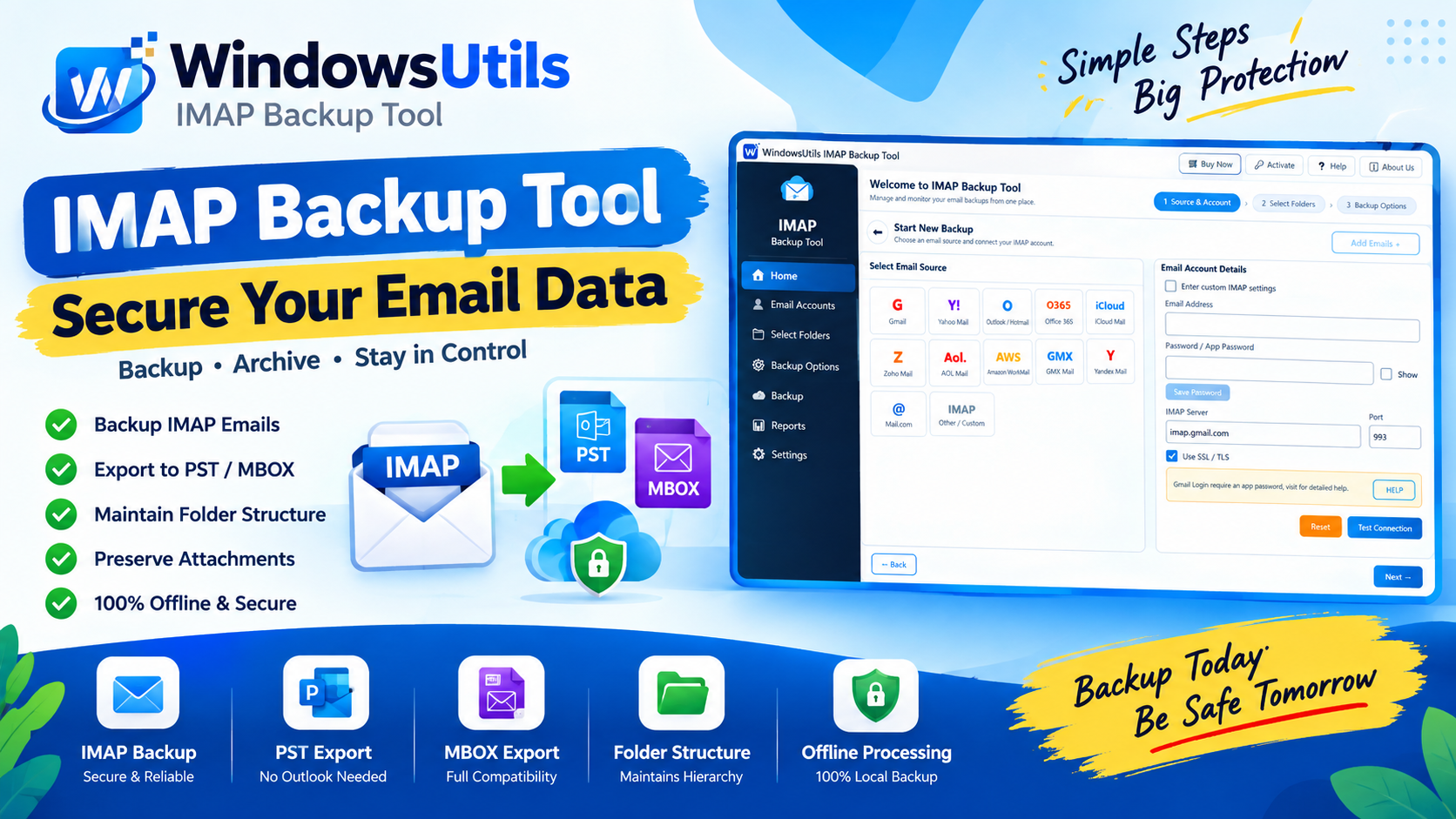
WindowsUtils IMAP Backup connects directly to Yahoo's secure IMAP servers and saves your entire mailbox to an external drive:
Step-by-Step Execution Sequence:
WindowsUtils Yahoo & Cloud Backup
Backup entire Yahoo Mail accounts with complete folder structures, headers, and attachments directly to your PC.
Summary & Final Thoughts
Do not leave decades of memories or business records trapped in an unbacked-up Yahoo account. Generating an App Password and executing an automated offline backup to an external hard drive takes less than 10 minutes and secures your data forever.
Expert Answers to Common Inquiries
Yes. In WindowsUtils, select PDF as the output format. Each Yahoo email will be converted into a clean PDF document with attachments embedded inside.
Alex Vance
Senior Systems & Email Infrastructure Architect
Specializes in Microsoft Exchange architectures, database structures, file forensics, and email platform migrations with over a decade of hands-on data recovery experience.
Related Technical Guides
Explore other tutorials on email migration, format conversions, and database repair.
 Backup & Recovery
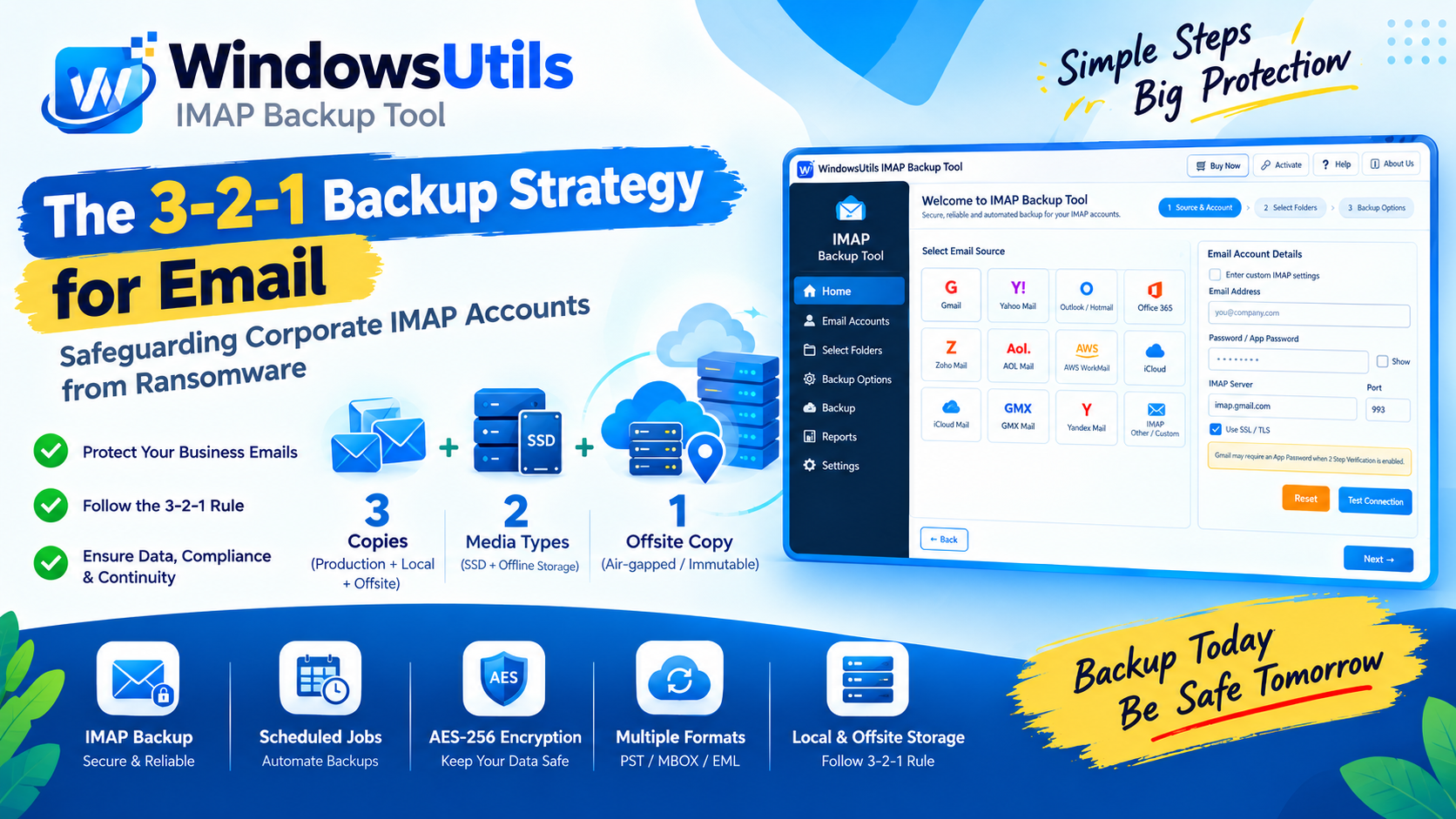
The 3-2-1 Backup Strategy for Email: Safeguarding Corporate IMAP Accounts from Ransomware
Implement a resilient 3-2-1 backup architecture for enterprise email accounts. Prevent data loss from account hijacking, ransomware, and cloud provider downtime.
 Backup & Recovery
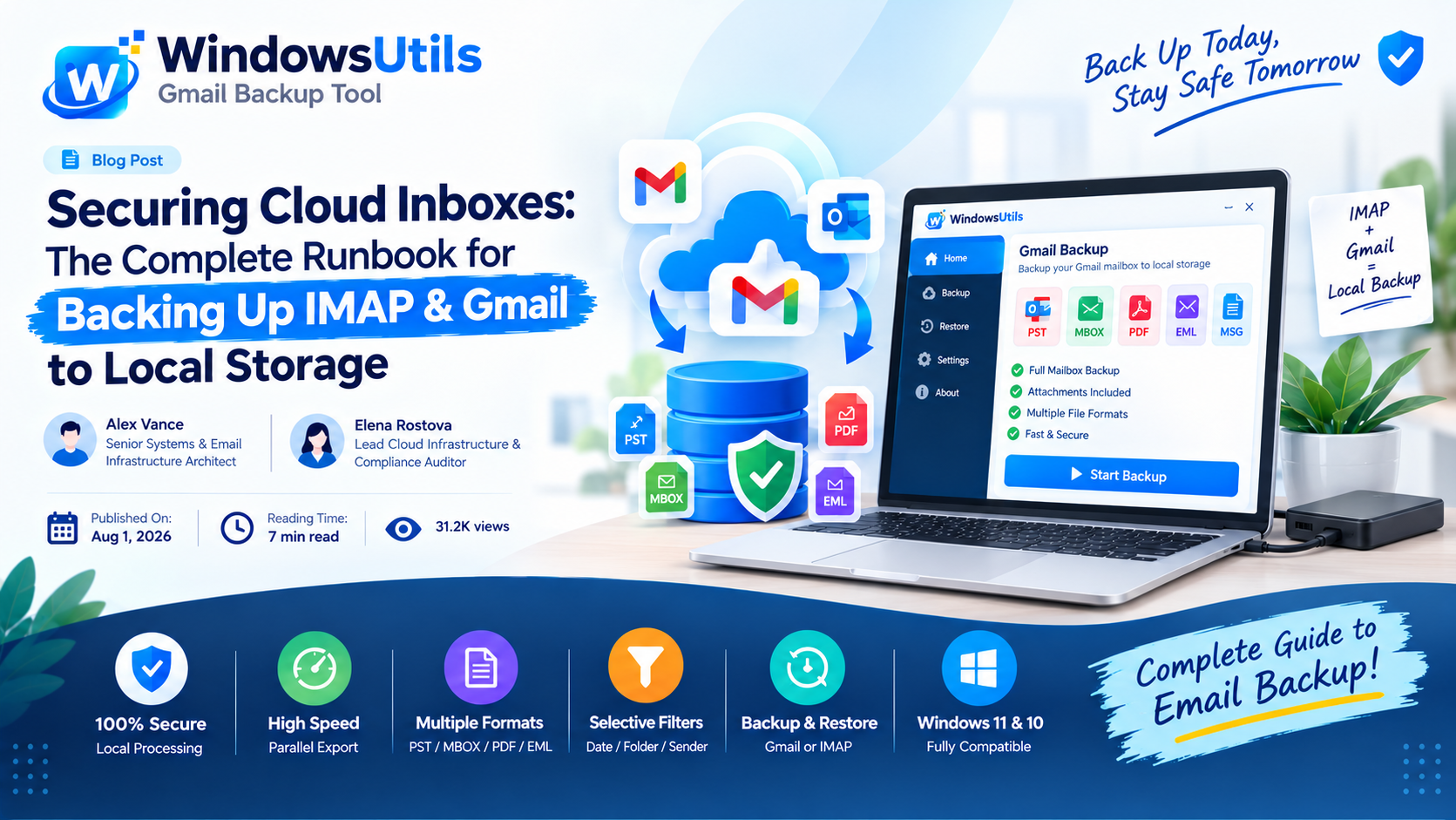
Securing Cloud Inboxes: The Complete Runbook for Backing Up IMAP & Gmail to Local Storage
Don't rely exclusively on cloud providers. Learn how to export complete IMAP and Gmail mailboxes to local offline storage formats like PST, MBOX, and EML.
 Backup & Recovery
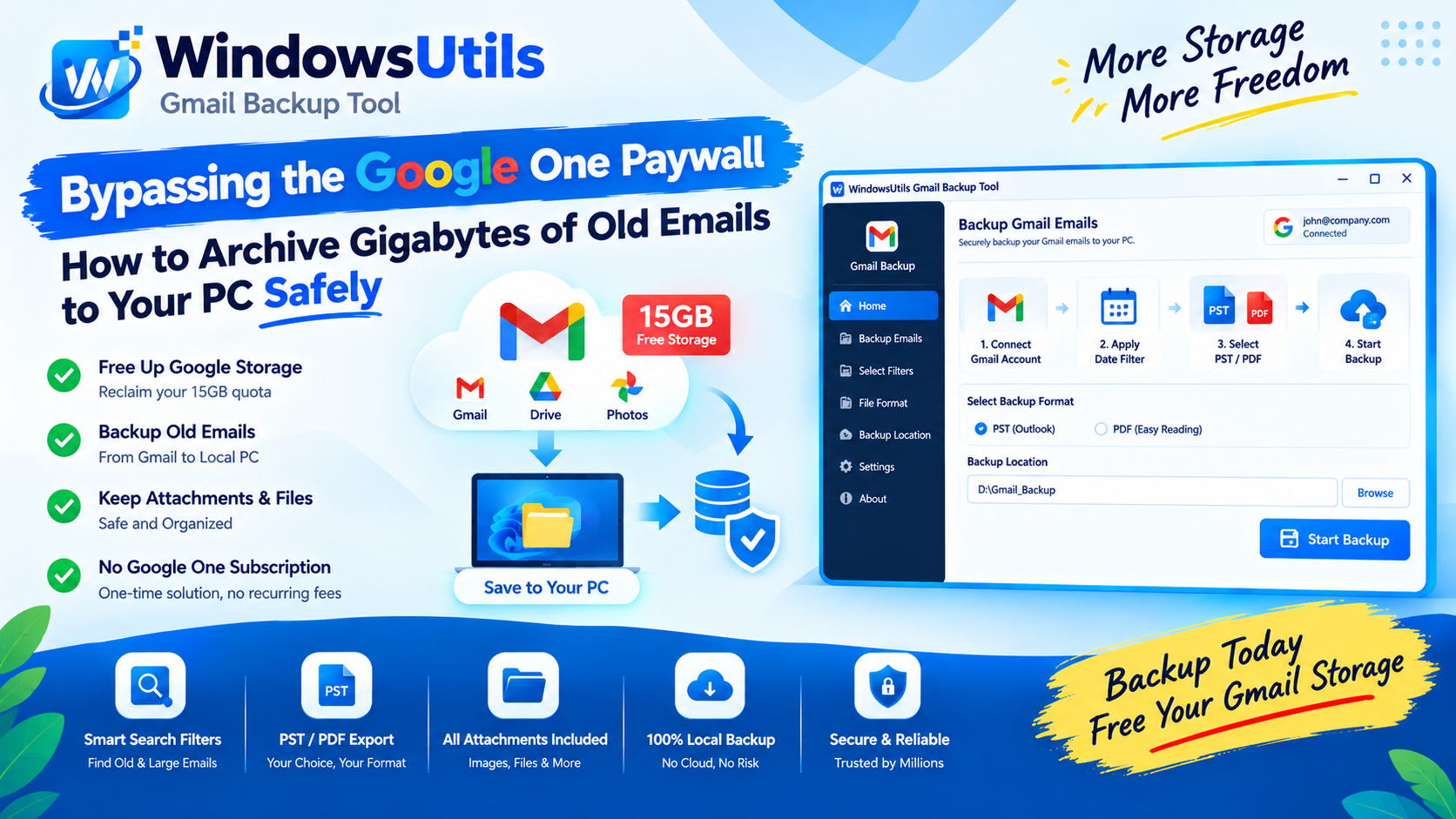
Bypassing the Google One Paywall: How to Archive Gigabytes of Old Emails to Your PC Safely
Hit Google's 15GB limit? Discover how to isolate heavy emails, archive years of correspondence to your local PC, and reclaim critical inbox storage without paying monthly subscriptions.