Securing Cloud Inboxes: The Complete Runbook for Backing Up IMAP & Gmail to Local Storage
Don't rely exclusively on cloud providers. Learn how to export complete IMAP and Gmail mailboxes to local offline storage formats like PST, MBOX, and EML.


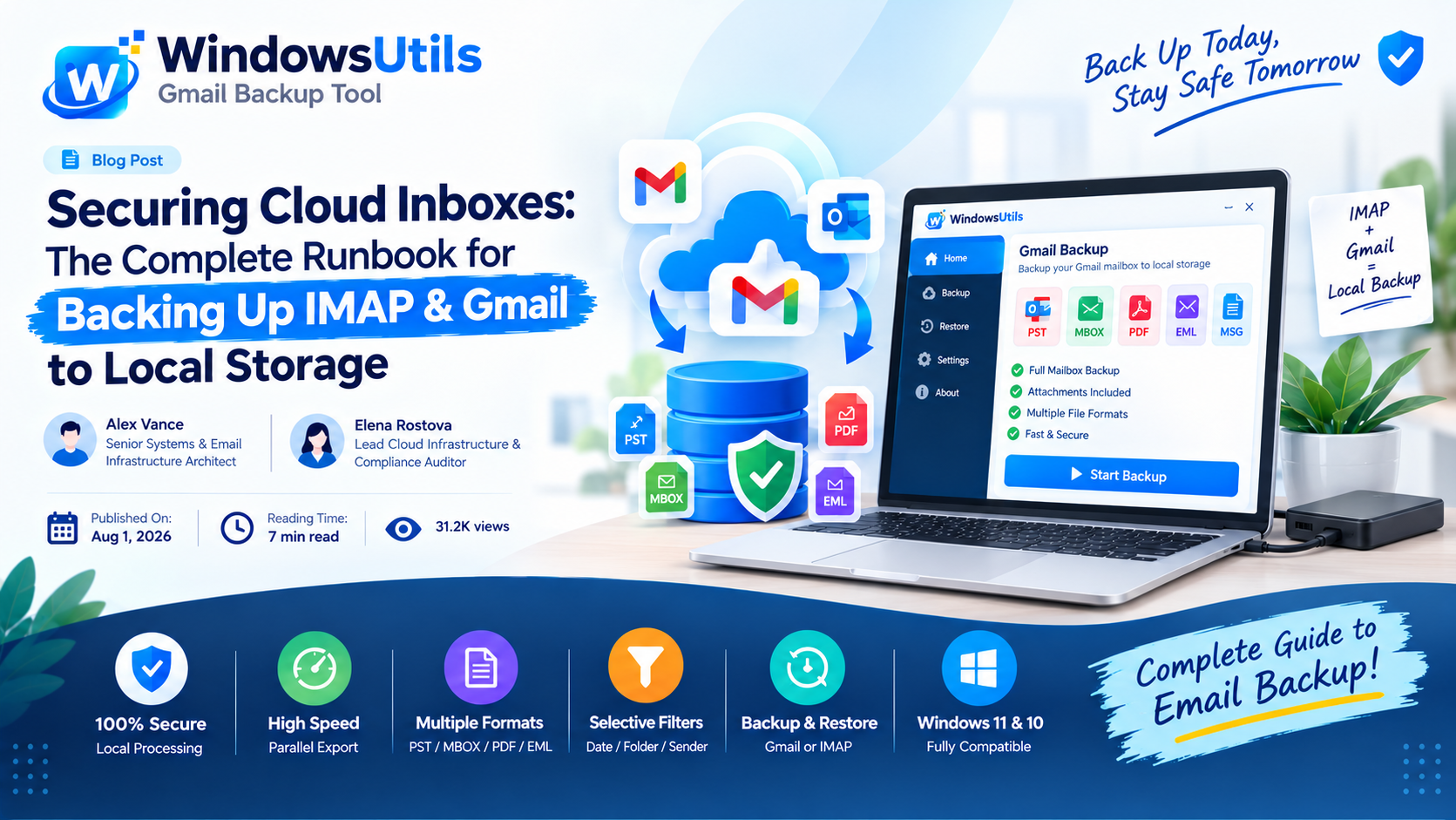
Modern professionals and businesses rely extensively on cloud email providers like Google Workspace (Gmail), Microsoft 365, Yahoo, and Zoho. While cloud storage is convenient, relying solely on cloud providers leaves your mission-critical correspondence vulnerable to accidental deletions, account lockouts, ransomware, and storage quota limits.
A proper 3-2-1 backup strategy requires keeping independent, encrypted offline copies of your mailboxes on local external hard drives. In this comprehensive guide, we examine the fastest and most secure methods to download and backup cloud messages using a dedicated IMAP backup tool or Gmail backup software directly to your local PC.
1. Why You Must Backup Cloud Emails Locally
Many users assume cloud providers back up their personal emails against user mistakes. In reality, cloud providers operate under a 'Shared Responsibility Model':
• Service Continuity vs Data Protection: The provider guarantees the server remains running, but if an account is compromised, phishing wipes an inbox, or an admin accidentally deletes a user, the data is permanently unrecoverable once retention periods expire.
• Account Suspensions: Automated security flags can freeze access to your Google account with zero warning or customer service recourse.
• Compliance & Audits: Tax authorities, legal eDiscovery mandates, and financial regulators often require maintaining offline, tamper-evident communication archives for 7+ years.
2. Method 1: Google Takeout for Gmail
For personal Gmail accounts, Google provides a built-in data export service called Google Takeout:
Step-by-Step Execution Sequence:
Important Safety Precaution
Google Takeout archives your mail as a single gigantic .mbox file. It does not allow incremental backups (every backup re-downloads your entire history), and links expire within 7 days.
3. Method 2: IMAP Client Local Caching
You can configure a desktop email client (such as Outlook or Thunderbird) over IMAP and force it to cache messages offline:
Step-by-Step Execution Sequence:
Pro Engineering Tip
Remember that an IMAP cache is a two-way sync mirror, NOT a backup. If an email is deleted on the web, Outlook will delete it locally the next time it synchronizes.
4. The Illusion of Cloud Redundancy
High availability is not backup. If malware or an unauthorized session executes a purge command across your inbox, that purge immediately synchronizes across all connected devices within seconds. Having an offline, unlinked archive is the only guaranteed protection.
5. Method 3: Automated Local Backup with WindowsUtils
The WindowsUtils Gmail Backup and IMAP Backup Tool connect directly to any cloud mail server via secure SSL/TLS protocols and download messages into flexible offline formats:
Step-by-Step Execution Sequence:
WindowsUtils Gmail & IMAP Backup Tool
Download entire cloud mailboxes from Gmail, Google Workspace, and IMAP servers directly to local PST, MBOX, and PDF files with schedule automation.
Summary & Final Thoughts
Maintaining local backups of your cloud correspondence protects your digital life and business integrity against cloud service outages, accidental purges, and quota lockouts. Schedule periodic offline archives with WindowsUtils IMAP Backup to an external drive to ensure complete peace of mind.
Expert Answers to Common Inquiries
Yes. WindowsUtils allows you to choose PST as the output format. The resulting PST can be opened directly in any version of Outlook without needing to import.
Alex Vance
Senior Systems & Email Infrastructure Architect
Specializes in Microsoft Exchange architectures, database structures, file forensics, and email platform migrations with over a decade of hands-on data recovery experience.
Related Technical Guides
Explore other tutorials on email migration, format conversions, and database repair.
 Backup & Recovery
Microsoft 365 Backup Guide: Exporting Exchange Online Mailboxes to Standalone PST Files
Step-by-step administrator and end-user guide to exporting Microsoft 365 (Exchange Online) mailboxes to local PST storage using eDiscovery and desktop tools.
 Backup & Recovery
Downloading Your Yahoo Mailbox to External Storage: Step-by-Step Archiving Walkthrough
Safeguard your Yahoo Mail account from lockouts and server outages. Export emails, attachments, and folders to external hard drives in PST, MBOX, and EML formats.
 Backup & Recovery
Field Tested: The 10 Most Reliable Gmail Backup Solutions for Windows in 2026
We subjected the top 10 Gmail backup software programs to speed, throttling, and metadata verification tests. Discover which tools reliably archive inboxes without crashing.