Reclaiming Outlook White Space: How to Shrink and Compact Oversized PST Archives
Deleting emails doesn't shrink your PST file due to internal white space allocation. Discover how Outlook's Compact Now operation works and how to reclaim gigabytes of disk space.


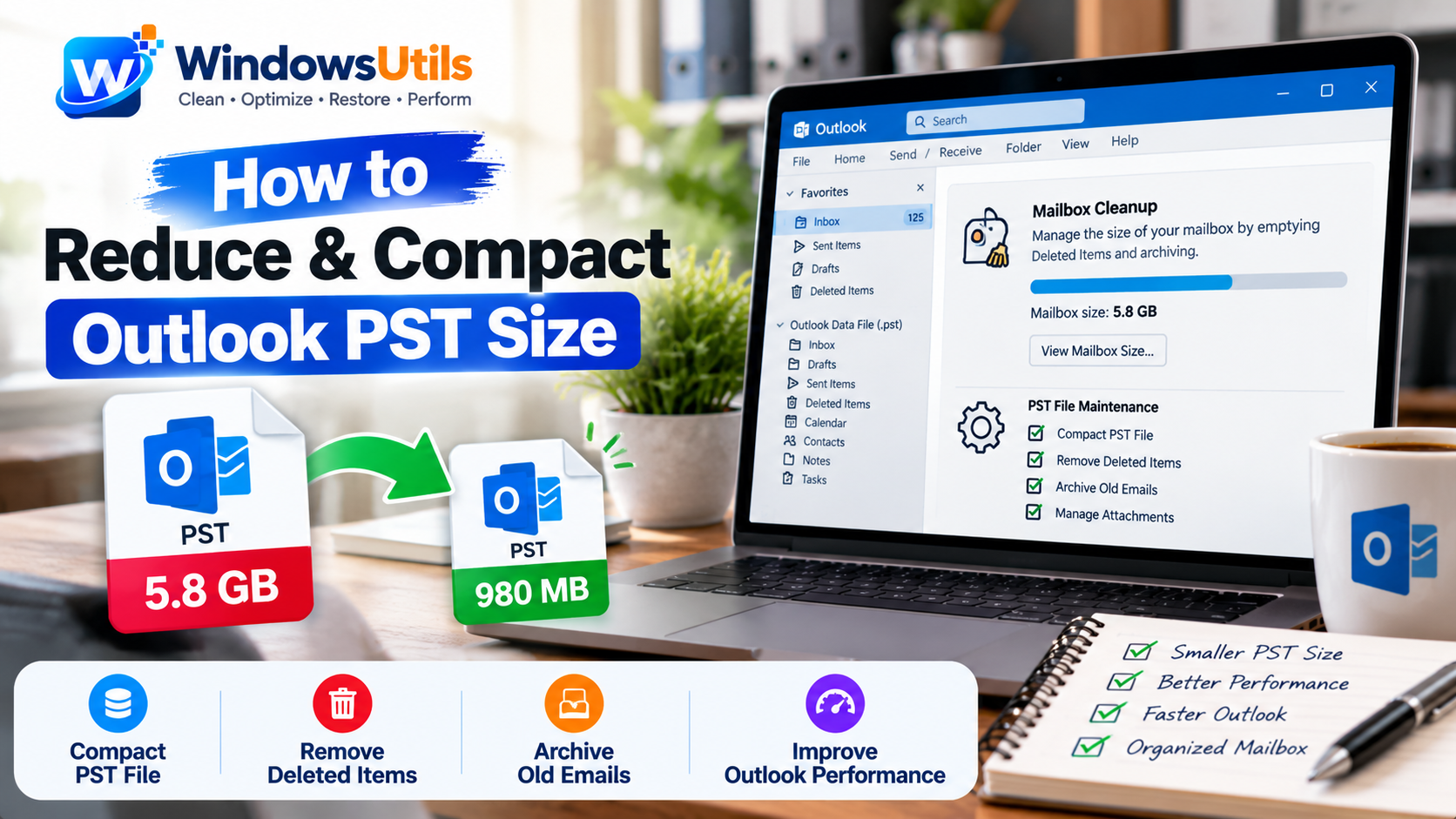
You spent the afternoon diligently purging 10,000 old emails and emptying the 'Deleted Items' folder, expecting your 45GB Outlook data file to shrink to 20GB. Yet when you inspect the file properties in Windows File Explorer, the file size hasn't shrunk by a single megabyte.
This perplexing behavior is an intentional database architectural design known as 'White Space'. Understanding how Outlook allocates storage and learning how to trigger compaction will reclaim vital disk space and restore snappy client responsiveness.
1. The White Space Mystery: Why Deleting Emails Doesn't Shrink PSTs
Outlook PST files Splitter operate on the same architectural principles as database engines like Microsoft Access or SQLite. When an email or attachment is deleted, Outlook does not immediately rewrite the entire multi-gigabyte container to trim the physical byte count.
Instead, the database engine marks the deleted records as 'Free Space' (or White Space). These empty slots are reserved for incoming messages, preventing heavy disk fragmentation. Until an explicit compaction process runs, the physical file footprint on your hard drive remains identical.
2. How Outlook's 'Compact Now' Operation Operates
Outlook does feature an automatic background compaction daemon, but it only triggers when:
1. Outlook is running idle with zero user interaction.
2. No heavy background email synchronization is active.
3. The white space within the file exceeds 20% of total file volume.
For busy professionals whose computers enter sleep mode at night, automatic compaction rarely completes. Running a manual compaction forces Outlook to purge deleted sectors and defragment internal index trees.
3. Step-by-Step: Compacting PST Files in Outlook
Before initiating compaction, always empty your 'Deleted Items' and 'Junk Email' folders to maximize space recovery.
Step-by-Step Execution Sequence:
Pro Engineering Tip
Compacting a 30GB file can take between 20 to 60 minutes depending on your storage speed (SSD vs HDD). Do not force-quit Outlook during this operation.
4. When Compacting Is Not Enough: Splitting vs Compacting
If your actual legitimate email archive (excluding deleted items) is genuinely larger than 35GB, compaction will only yield marginal improvements (5% to 10% reduction).
In this scenario, attempting to keep all historical years inside a single active PST risks fatal database corruption. The proper IT architecture is dividing the PST by calendar year or file size threshold using WindowsUtils PST File Splitter.
5. Best Practices to Prevent PST File Bloat
To keep your Outlook operating at peak responsiveness year-round:
• Save Large Attachments Locally: Save multi-megabyte PDF catalogs and ZIP archives to your SSD and delete them from the email message.
• Routine Cleanups: Schedule monthly sweeps to purge promotional mail and empty trash folders.
• Implement Yearly Archive Buckets: Maintain separate Archive PST File Splitter for prior fiscal years.
WindowsUtils PST File Splitter
Compact bloated PST databases, reclaim unindexed white space, and divide massive mail archives into high-speed manageable files.
Summary & Final Thoughts
Compacting your Outlook data file is the simplest routine maintenance task to recover gigabytes of storage and prevent Outlook sluggishness. Pair regular compaction with strategic archive splitting to maintain effortless mailbox performance.
Expert Answers to Common Inquiries
It is strongly advised to leave Outlook completely uninterrupted until the compaction dialog finishes to avoid lock contention or sluggishness.
Sarah Jenkins
Data Recovery & Forensic Analysis Lead
Specializes in Microsoft Exchange architectures, database structures, file forensics, and email platform migrations with over a decade of hands-on data recovery experience.
Related Technical Guides
Explore other tutorials on email migration, format conversions, and database repair.
 Outlook Tips
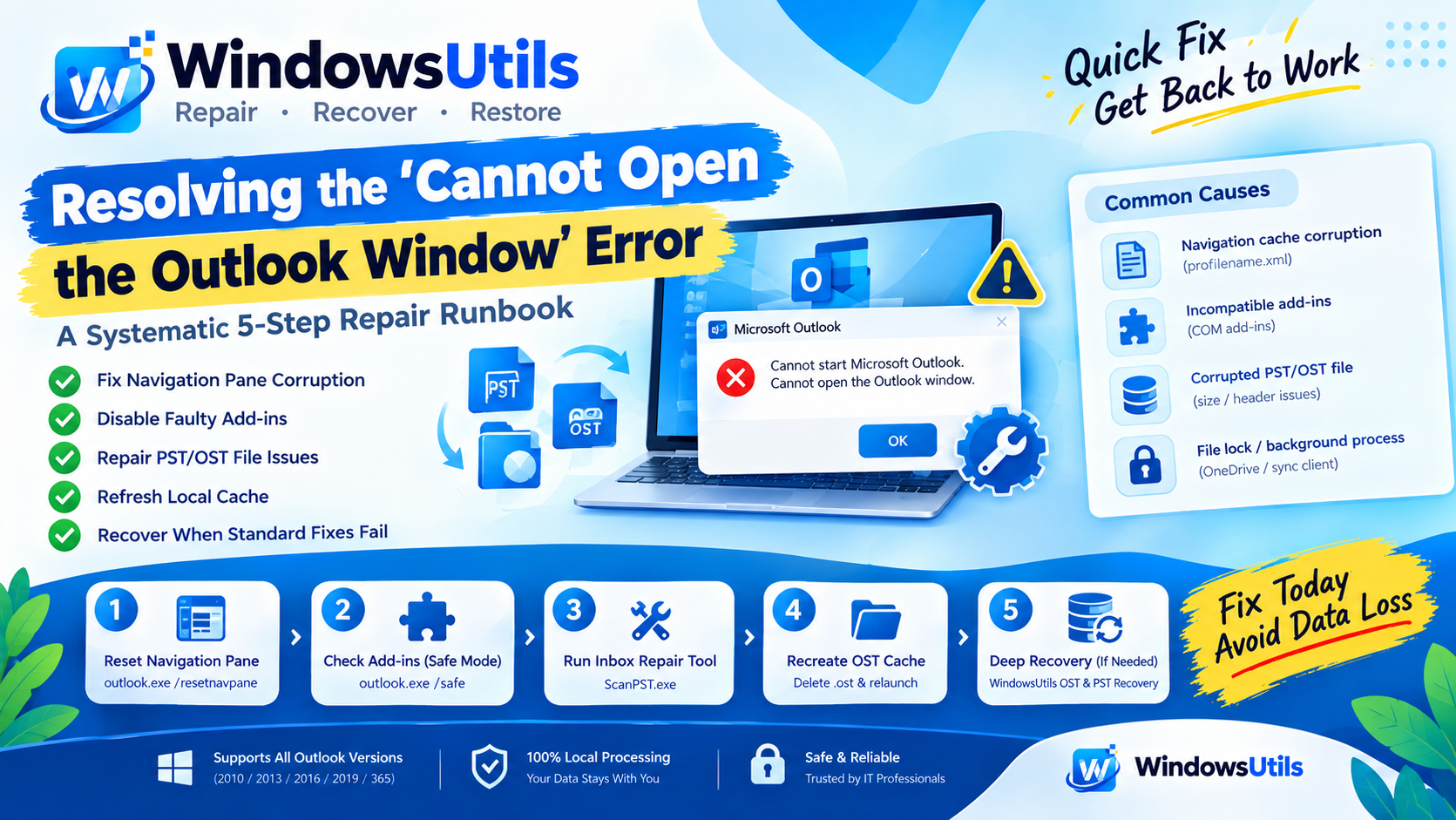
Resolving the 'Cannot Open the Outlook Window' Error: A Systematic 5-Step Repair Runbook
Step-by-step diagnostic guide to resolving 'Cannot start Microsoft Outlook. Cannot open the Outlook window' and corrupt PST/OST data file initialization errors.
 Outlook Tips
Defeating the 50GB Limit: How to Safely Divide Oversized Outlook PST Files
Prevent severe mailbox corruption and Outlook freezes. Learn how to split massive PST files exceeding 20GB and 50GB into smaller, high-performance archives.
 Outlook Tips
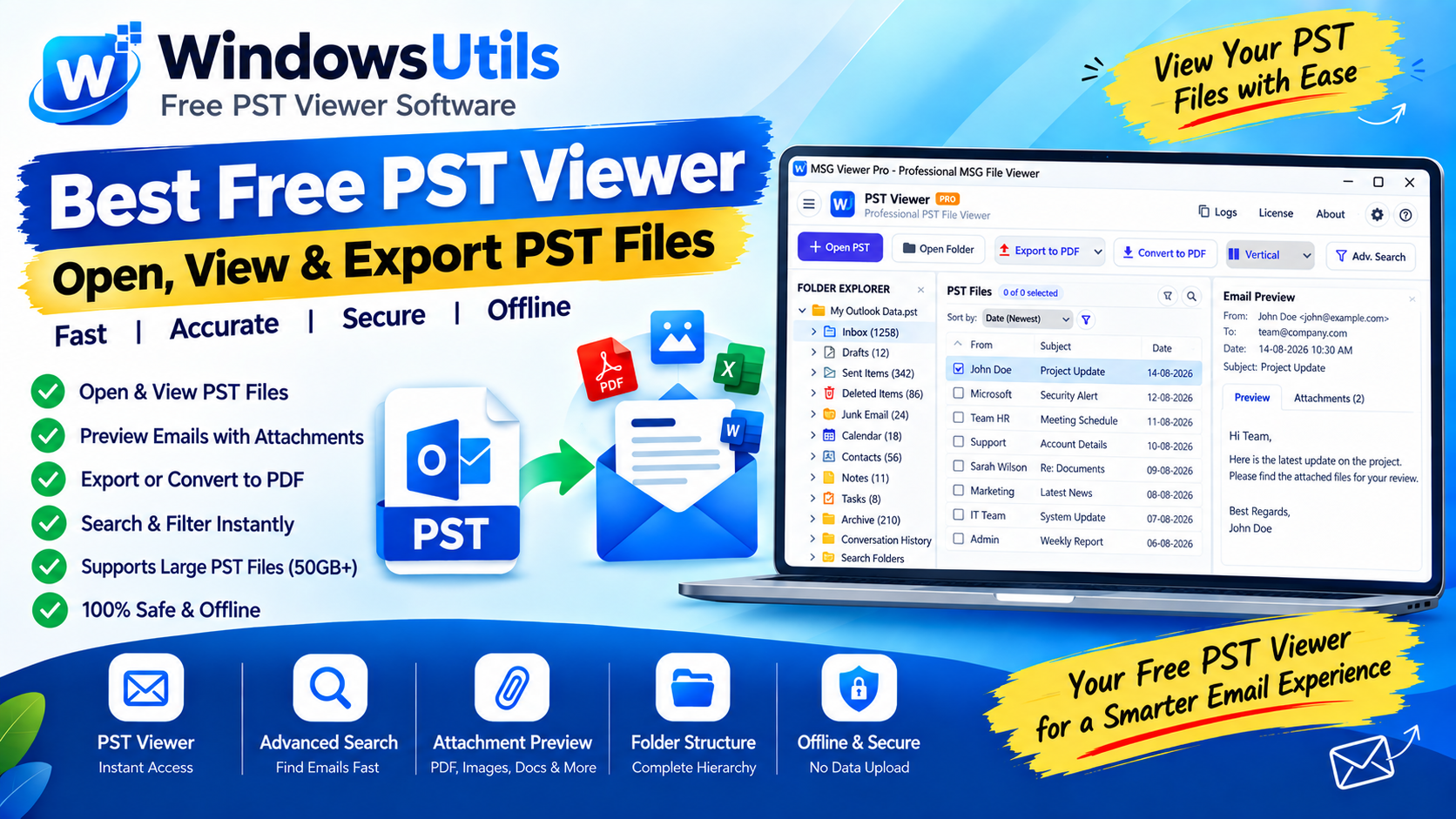
Accessing Orphaned PST Data: How to Inspect, Search, and Read Outlook Files on Bare Machines
Need to view emails inside an Outlook PST file without Microsoft Office? Explore free standalone PST viewer tools, open-source workarounds, and forensic search methods.