Defeating the 50GB Limit: How to Safely Divide Oversized Outlook PST Files
Prevent severe mailbox corruption and Outlook freezes. Learn how to split massive PST files exceeding 20GB and 50GB into smaller, high-performance archives.


Microsoft Outlook data files (.pst) act as the central storehouse for corporate communications, calendar events, tasks, contacts, and email attachments. As years pass, an active mailbox effortlessly balloons past 20GB, 35GB, or the default 50GB threshold.
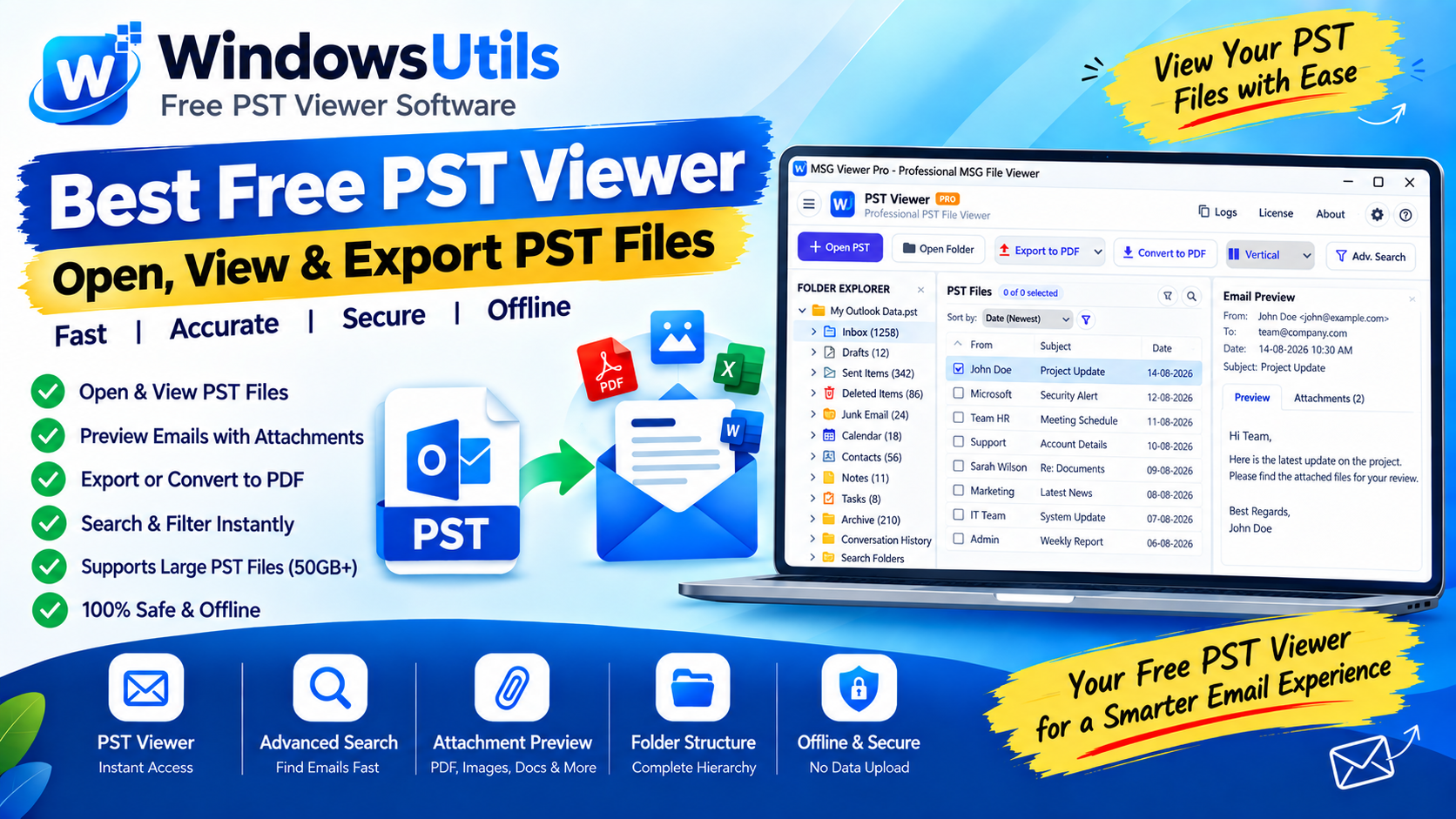
When an Outlook PST file approaches its upper threshold, users experience unbearable search latency, sudden application freezes during email indexing, and worst of all, header corruption that locks access to historical data. Splitting a sprawling PST into bite-sized chunks using a dedicated PST file splitter is the gold standard for maintaining a swift, crash-free Outlook client. If you only need to inspect archive contents without opening Outlook, you can also use our free PST viewer.
1. Why Splitting Oversized PST Files Is Critical
Unlike cloud storage partitions that scale horizontally, a PST file is an indexed single-file database. Every new message, inline JPEG, or PDF proposal increases the internal b-tree index depth.
As the database exceeds 30GB, Outlook requires exponentially more memory and disk I/O to parse database pointers. A sudden power fluctuation, abrupt Windows restart, or antivirus scan mid-sync can fracture the root node table, triggering fatal corruption.
Pro Engineering Tip
Never let your active PST exceed 80% of its hard limit. If you operate on Outlook 2016, 2019, or Microsoft 365, initiate archiving or splitting when your file hits 30GB to guarantee seamless operation.
2. Outlook PST Size Limits Across Versions
Microsoft has gradually adjusted maximum PST dimensions over successive software releases. Understanding your specific environment's boundary prevents unexpected file lockout.
| Outlook Version | Default Maximum Size | Recommended Maximum | Database Format |
|---|---|---|---|
| Outlook 2002 / XP / 97 | 2 GB | 1.5 GB | ANSI (Legacy) |
| Outlook 2003 / 2007 | 20 GB | 15 GB | Unicode |
| Outlook 2010 / 2013 | 50 GB | 35 GB | Unicode |
| Outlook 2016 / 2019 / 2021 | 50 GB (Configurable via Registry to 4TB) | 40 GB | Unicode |
| Microsoft 365 (Desktop Apps) | 50 GB | 40 GB | Unicode |
3. Method 1: Splitting via Outlook's Manual Archive Feature
Outlook provides a native Mailbox Cleanup engine that transfers items older than a specified cutoff date into a designated secondary archive file.
Follow these steps inside desktop Outlook:
Step-by-Step Execution Sequence:
Important Safety Precaution
Manual archiving does not compress the original PST file automatically. You must separately right-click the root folder, navigate to Data File Properties > Advanced, and click 'Compact Now' to reclaim disk space.
4. Method 2: Splitting via Export to New PST Files
If you need to segment your PST by organizational departments or dedicated folders (e.g., splitting 'Invoices', 'Legal', and 'Sales' into distinct archives), Outlook's Import/Export wizard provides folder-level routing.
Step-by-Step Execution Sequence:
5. Limitations of Native Outlook Splitting
While manual archiving works for modest email collections, it exhibits severe operational roadblocks for IT administrators and power users managing multi-gigabyte mail archives:
• Zero Size-Based Splitting: Outlook cannot natively slice a 48GB file into three equal 16GB segments.
• Sluggish Execution: Archiving 20GB of mail items via Outlook's internal COM engine can take between 6 to 14 hours, frequently freezing during large attachment transfers.
• Missing Orphaned File Support: If Outlook cannot mount the file due to an expired profile, license limitation, or severed Exchange connection, native tools are completely unusable.
6. Method 3: Automated Splitting with WindowsUtils
The WindowsUtils PST File Splitter is an enterprise-grade utility engineered to parse and segment massive Outlook data files directly at the binary block level, operating completely independently of the Outlook desktop client.
Step-by-Step Execution Sequence:
Pro Engineering Tip
Each generated child PST retains your full folder hierarchy, message read/unread metadata, flags, calendar recurrences, and embedded signatures.
WindowsUtils PST File Splitter
Safely divide oversized Outlook PST files by size, date, year, or folder hierarchy while preserving 100% email formatting and attachments.
Summary & Final Thoughts
Don't wait for Outlook to lock you out with an unreadable database error. By dividing oversized PST files into structured, size-managed segments with WindowsUtils PST File Splitter, you safeguard your historical business correspondence and restore snappy, instantaneous search across Outlook. You can also view archive items anytime with the WindowsUtils Free PST Viewer.
Expert Answers to Common Inquiries
No. High-fidelity splitting utilities preserve all MAPI properties, including Read/Unread flags, message categories, priority tags, and folder trees.
Sarah Jenkins
Data Recovery & Forensic Analysis Lead
Specializes in Microsoft Exchange architectures, database structures, file forensics, and email platform migrations with over a decade of hands-on data recovery experience.
Related Technical Guides
Explore other tutorials on email migration, format conversions, and database repair.
 Outlook Tips
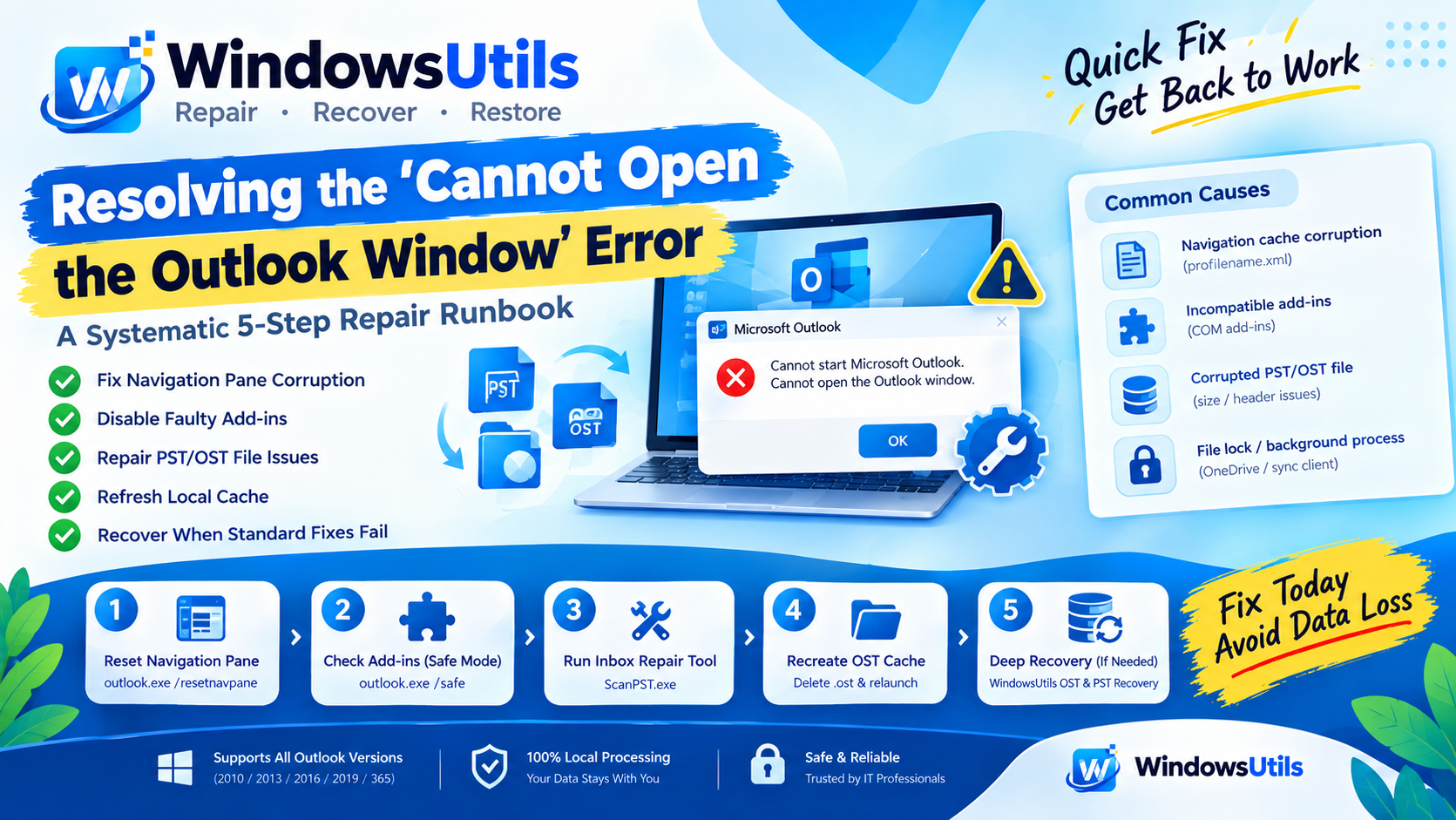
Resolving the 'Cannot Open the Outlook Window' Error: A Systematic 5-Step Repair Runbook
Step-by-step diagnostic guide to resolving 'Cannot start Microsoft Outlook. Cannot open the Outlook window' and corrupt PST/OST data file initialization errors.
 Outlook Tips
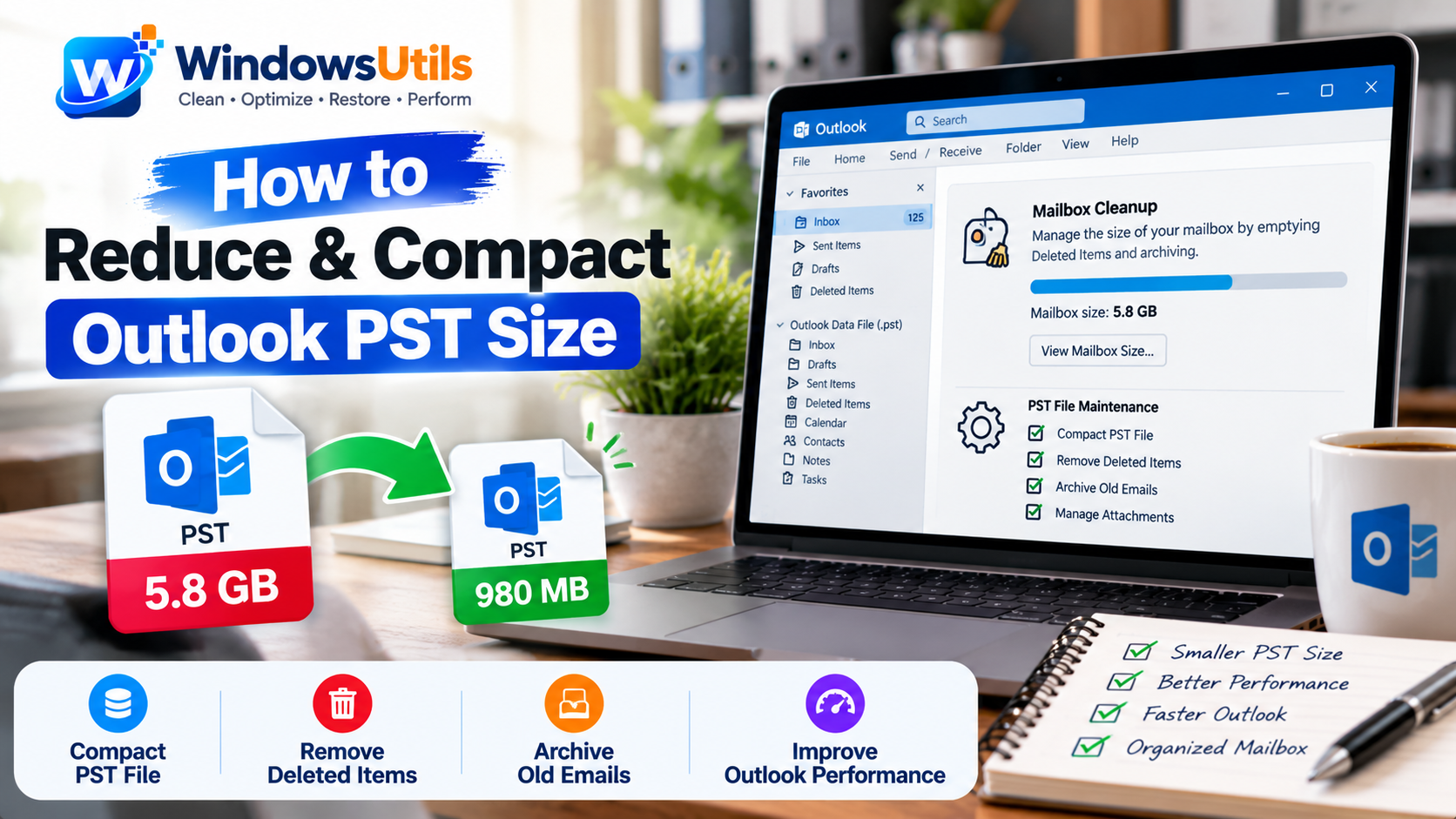
Reclaiming Outlook White Space: How to Shrink and Compact Oversized PST Archives
Deleting emails doesn't shrink your PST file due to internal white space allocation. Discover how Outlook's Compact Now operation works and how to reclaim gigabytes of disk space.
 Outlook Tips
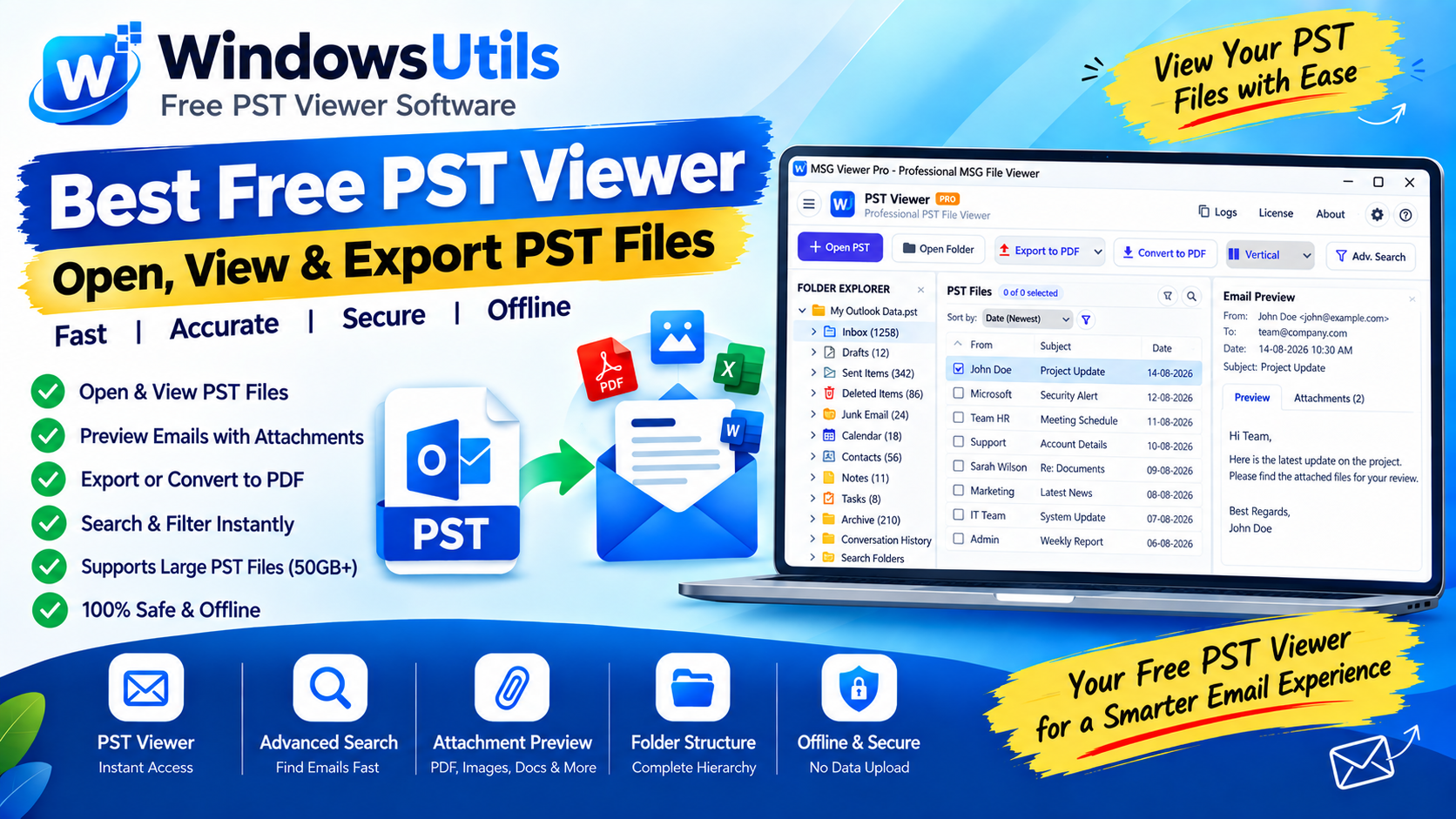
Accessing Orphaned PST Data: How to Inspect, Search, and Read Outlook Files on Bare Machines
Need to view emails inside an Outlook PST file without Microsoft Office? Explore free standalone PST viewer tools, open-source workarounds, and forensic search methods.