Resolving the 'Cannot Open the Outlook Window' Error: A Systematic 5-Step Repair Runbook
Step-by-step diagnostic guide to resolving 'Cannot start Microsoft Outlook. Cannot open the Outlook window' and corrupt PST/OST data file initialization errors.


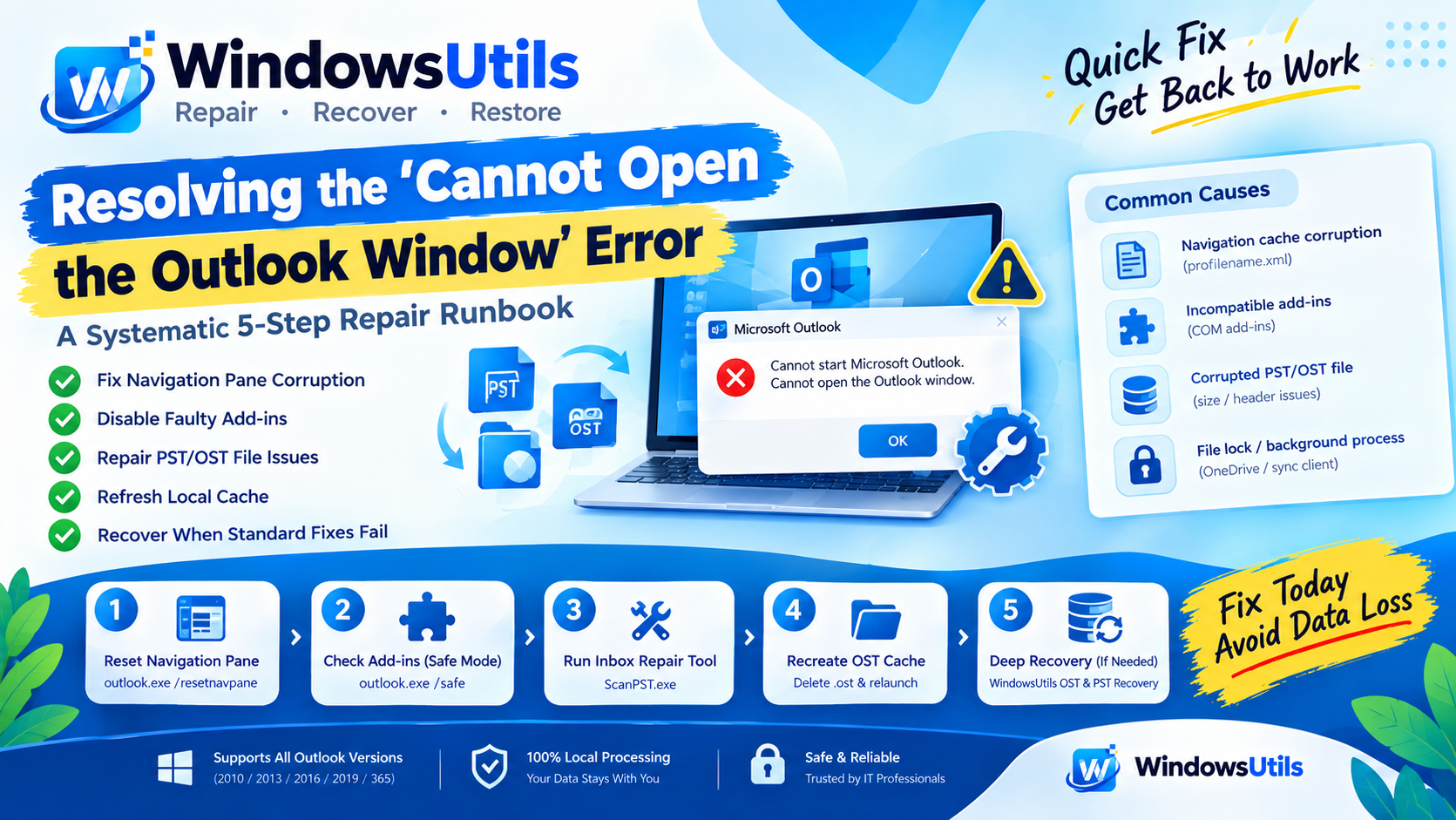
You double-click Microsoft Outlook expecting to check your morning emails, only to be met with a frustrating modal: 'Cannot start Microsoft Outlook. Cannot open the Outlook window. The set of folders cannot be opened. The file C:\Users\...\Outlook.pst cannot be opened.'
This is one of the most notorious errors in desktop IT support. Fortunately, the issue stems from a predictable set of failure points: navigation cache corruption, incompatible COM add-ins, or corrupted internal MAPI pointers in your data file. Here is the proven troubleshooting sequence to get your mailbox working again.
1. Why Outlook Refuses to Open Your Data File
Outlook depends on multiple configuration states before displaying its main graphical interface. The error triggers when:
• The XML navigation pane configuration (`profilename.xml`) has become corrupt.
• The active PST or OST data file is locked by a hanging background process or cloud sync client (like OneDrive).
• The PST file has surpassed the 50GB threshold, damaging the internal table allocation How to Convert OST Files to PST.
• Bad sectors or unexpected power cuts corrupted the Outlook database headers.
3. Solution 2: Start Outlook in Safe Mode & Check Add-ins
Faulty third-party add-ins (such as security plugins, CRM connectors, or antivirus integrations) can intercept Outlook's startup hook and trigger immediate crashes.
Step-by-Step Execution Sequence:
4. Solution 3: Run the Inbox Repair Tool (ScanPST.exe)
If the problem is rooted in database header errors, Microsoft includes a built-in diagnostic utility called ScanPST.exe with every Office installation.
Step-by-Step Execution Sequence:
Important Safety Precaution
ScanPST.exe is notoriously destructive on heavily fragmented files. When it encounters unreadable blocks, it discards those sectors entirely, often deleting orphaned emails and calendar entries permanently.
5. Solution 4: Delete and Recreate the Local OST Cache
If you connect to Exchange, Microsoft 365, or an IMAP server, Outlook utilizes an offline cache (.ost). If this cache becomes damaged, you can simply purge the cache file while Outlook is closed:
Navigate to `%localappdata%\Microsoft\Outlook`, locate your account's `.ost` file, and rename it to `.ost.old`. When you relaunch Outlook, it will automatically connect to your mail server and download a fresh mailbox cache.
6. Solution 5: Deep Recovery When ScanPST Fails
If you use a POP3 mailbox or an orphaned PST file where ScanPST reports 'An unexpected error occurred. No changes were made to the file', the database index requires raw sector reconstruction.
Using WindowsUtils OST & PST Recovery Suite, you can scan the damaged container in raw forensic mode, extract every valid message and folder tree, and compile a brand-new, corruption-free PST file that opens instantly in Outlook.
WindowsUtils OST & PST Recovery Suite
Repair severely corrupted PST data files and convert inaccessible OST containers when ScanPST.exe fails to salvage your mailbox.
Summary & Final Thoughts
Resolving the OST to PST Converter error is straightforward once you isolate the cause. Start with `/resetnavpane`, test Safe Mode, and if file corruption is present, leverage trusted repair tools to preserve your valuable communications.
Expert Answers to Common Inquiries
On Windows 11 and 10, default PST files reside either in `C:\Users\<username>\Documents\Outlook Files` or `%localappdata%\Microsoft\Outlook`.
Alex Vance
Senior Systems & Email Infrastructure Architect
Specializes in Microsoft Exchange architectures, database structures, file forensics, and email platform migrations with over a decade of hands-on data recovery experience.
Related Technical Guides
Explore other tutorials on email migration, format conversions, and database repair.
 Email Migration
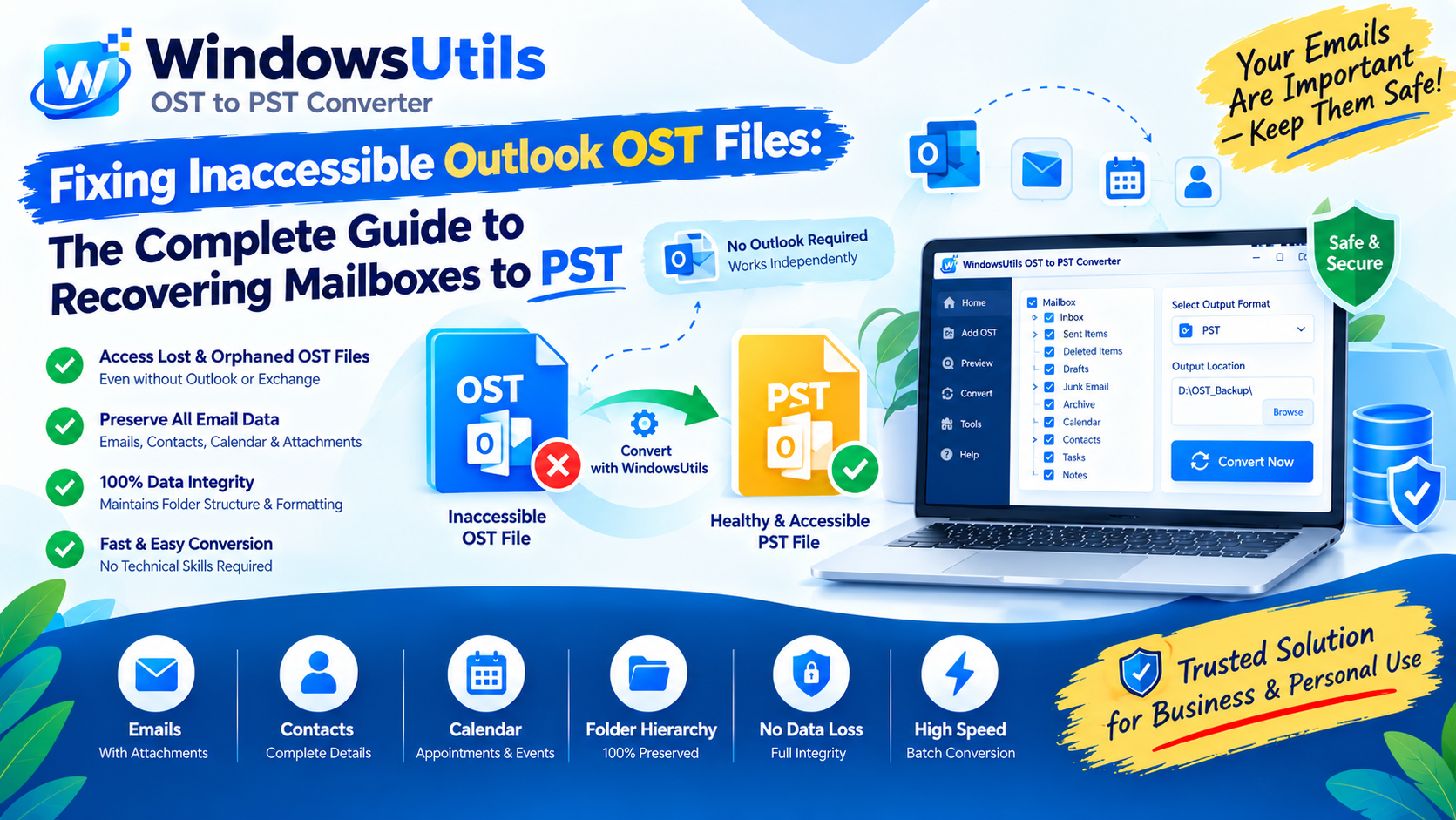
Fixing Inaccessible Outlook OST Files: The Complete Guide to Recovering Mailboxes to PST
Learn how to recover inaccessible or orphaned Outlook OST files to portable PST format without data loss. Covers native export and automated offline conversion methods.
 Outlook Tips
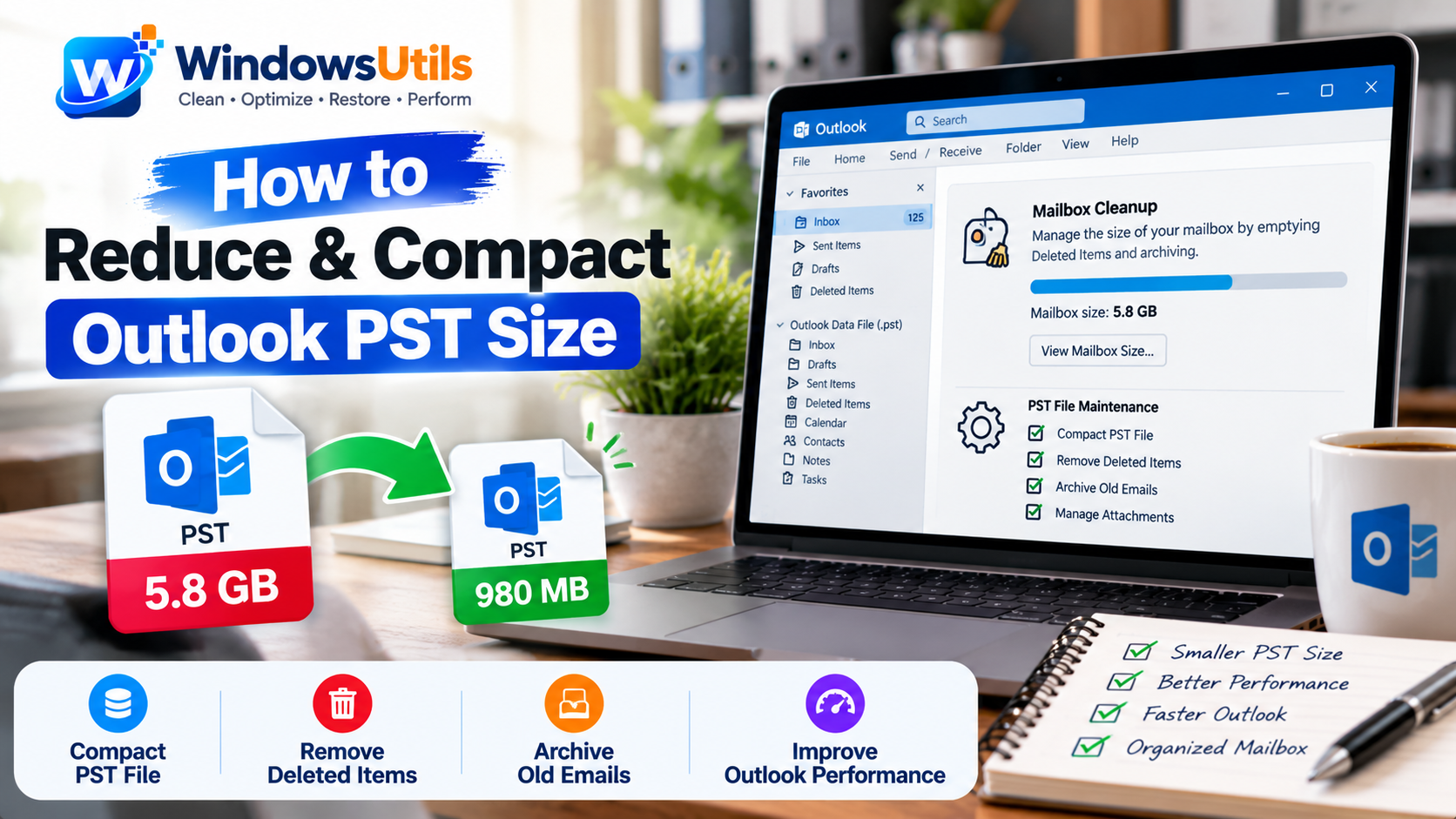
Reclaiming Outlook White Space: How to Shrink and Compact Oversized PST Archives
Deleting emails doesn't shrink your PST file due to internal white space allocation. Discover how Outlook's Compact Now operation works and how to reclaim gigabytes of disk space.
 Outlook Tips
Defeating the 50GB Limit: How to Safely Divide Oversized Outlook PST Files
Prevent severe mailbox corruption and Outlook freezes. Learn how to split massive PST files exceeding 20GB and 50GB into smaller, high-performance archives.