Microsoft 365 Backup Guide: Exporting Exchange Online Mailboxes to Standalone PST Files
Step-by-step administrator and end-user guide to exporting Microsoft 365 (Exchange Online) mailboxes to local PST storage using eDiscovery and desktop tools.


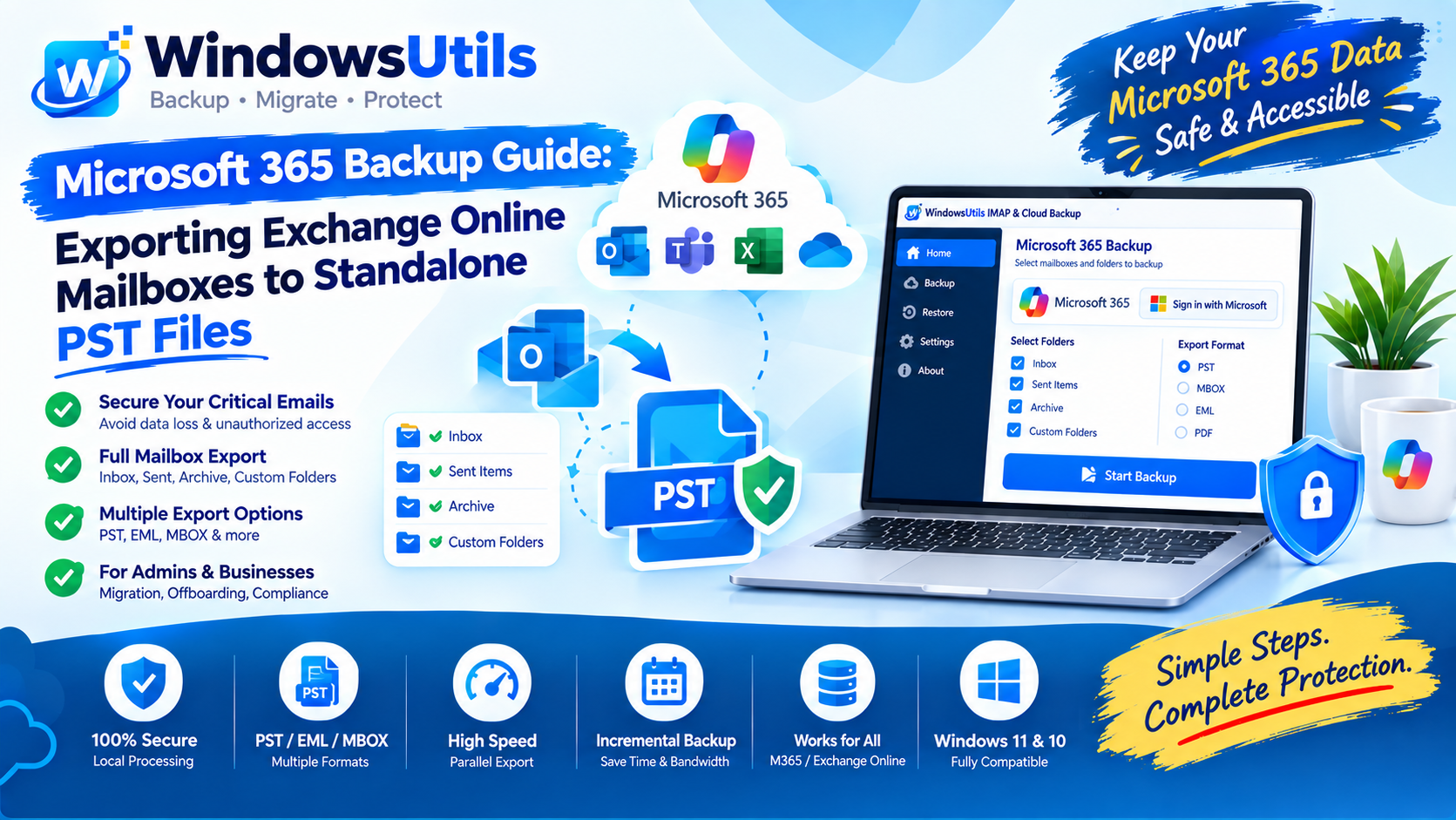
Microsoft 365 dominates corporate communications. Yet, Microsoft explicitly states in section 6b of the Microsoft Services Agreement: 'We recommend that you regularly backup Your Content and Data that you store on the Services or store using Third-Party Apps and Services.'
Whether preparing for employee departures, tenant-to-tenant migrations, or defending against business email compromise (BEC) attacks, exporting M365 mailboxes into standalone PST files is essential. If you already have orphaned offline files, you can also look into our OST to PST converter. Here is the complete breakdown of native and automated options using WindowsUtils IMAP & Cloud Backup.
1. The Truth About Microsoft 365 Data Protection
Microsoft 365 provides high infrastructure availability (DAG clusters, geo-redundant data centers), but that is not a backup solution:
• Deleted Item Retention: By default, deleted items in Exchange Online are held for only 14 days (extendable to 30 days). Once that window lapses, items are purged permanently.
• Ransomware & Malicious Insider: If an account's credentials are leaked, a bad actor can easily empty inboxes and purge the 'Recoverable Items' folder.
• Licensing Costs: Retaining mailboxes of former employees requires paying monthly license fees unless you convert them to shared mailboxes or export them to PST.
2. Method 1: Microsoft Purview eDiscovery PST Export
Global Administrators can utilize Microsoft Purview compliance center to search and export user mailboxes:
Step-by-Step Execution Sequence:
Important Safety Precaution
eDiscovery PST Export frequently fails with network timeout errors on mailboxes larger than 10 GB and requires strict RBAC roles (eDiscovery Manager) to execute.
3. Method 2: Outlook Desktop Export Wizard
If you only manage your own individual account, Outlook desktop provides a direct path:
Step-by-Step Execution Sequence:
4. Frustrations with Native Microsoft Exports
Native Microsoft methods present severe bottlenecks for administrators:
• ClickOnce Tool Errors: The eDiscovery tool regularly throws 'Application Cannot Be Started' errors on Windows 11.
• Lack of Incremental Backups: You cannot run daily or weekly syncs—every export regenerates the entire multi-gigabyte mailbox from scratch.
• Throttling: Microsoft Graph and EWS protocols heavily throttle manual downloads during business hours.
5. Method 3: Automated Direct Backup with WindowsUtils
The WindowsUtils IMAP & Enterprise Mail Backup utility connects over modern OAuth2 / Modern Authentication protocols to stream M365 mailboxes directly to encrypted PST files:
Step-by-Step Execution Sequence:
WindowsUtils Enterprise Mail Backup
Reliable, high-speed mailbox backup utility for Microsoft 365, Exchange Online, and corporate IMAP servers.
Summary & Final Thoughts
Do not rely solely on cloud redundancy to safeguard critical organizational knowledge. Maintaining periodic PST archives with WindowsUtils IMAP Backup provides instant disaster recovery. If your PST file ever grows beyond Outlook's 50GB limit, you can easily divide it using a PST file splitter.
Expert Answers to Common Inquiries
Yes. Once you have Full Access permissions to the shared mailbox, it will appear in your desktop Outlook client or can be targeted directly in eDiscovery / WindowsUtils.
Elena Rostova
Lead Cloud Infrastructure & Compliance Auditor
Specializes in Microsoft Exchange architectures, database structures, file forensics, and email platform migrations with over a decade of hands-on data recovery experience.
Related Technical Guides
Explore other tutorials on email migration, format conversions, and database repair.
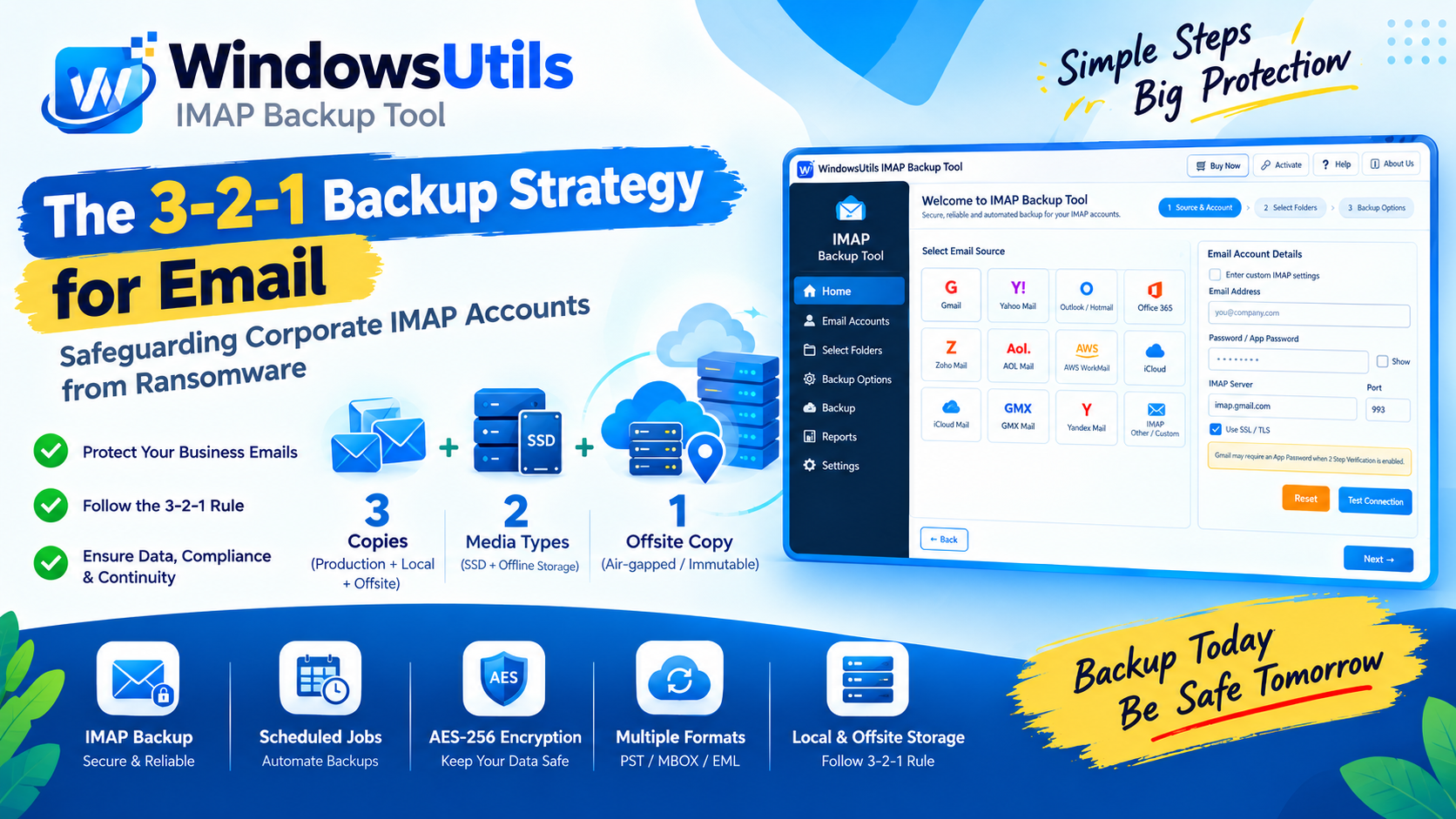 Backup & Recovery
The 3-2-1 Backup Strategy for Email: Safeguarding Corporate IMAP Accounts from Ransomware
Implement a resilient 3-2-1 backup architecture for enterprise email accounts. Prevent data loss from account hijacking, ransomware, and cloud provider downtime.
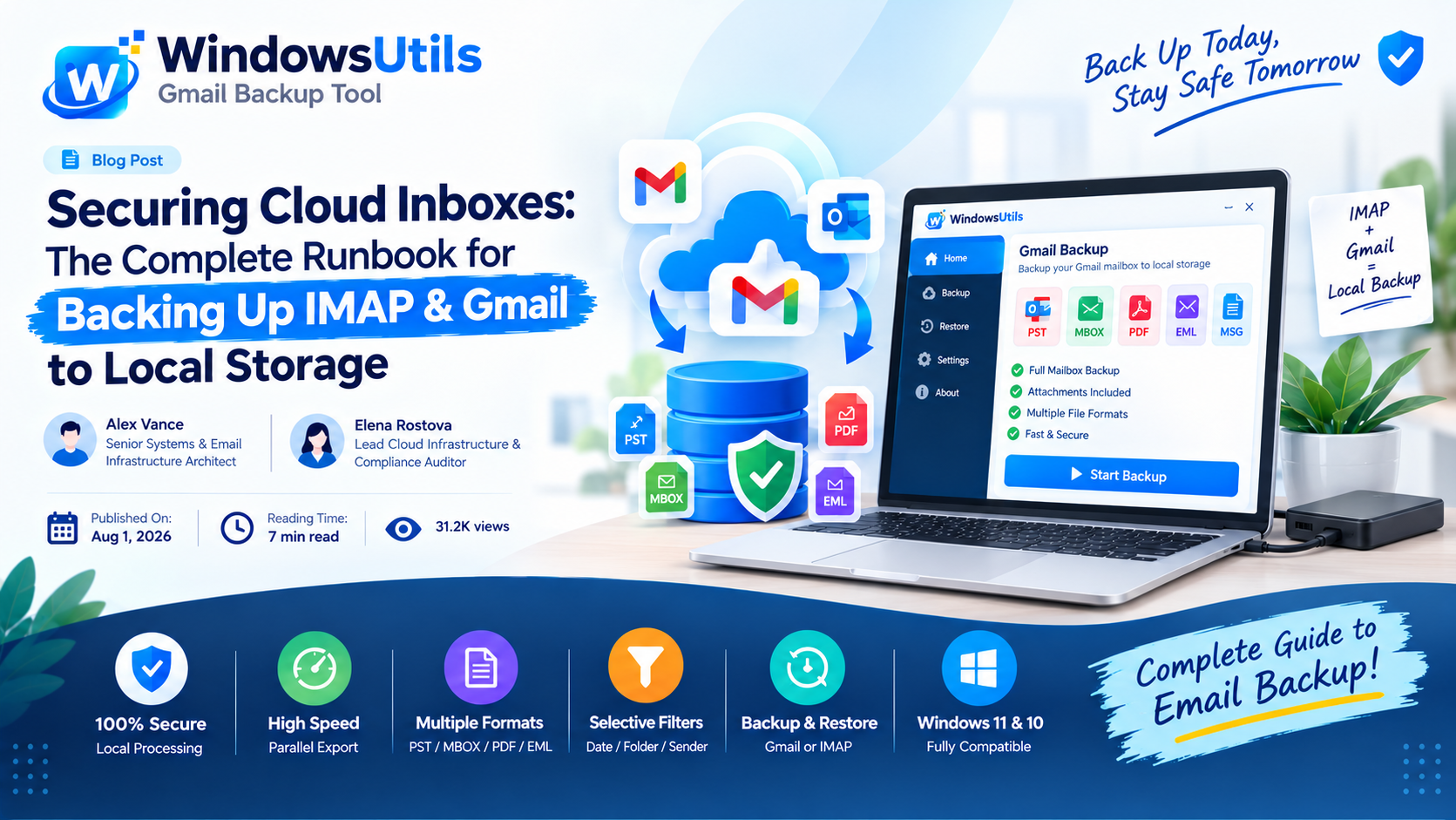 Backup & Recovery
Securing Cloud Inboxes: The Complete Runbook for Backing Up IMAP & Gmail to Local Storage
Don't rely exclusively on cloud providers. Learn how to export complete IMAP and Gmail mailboxes to local offline storage formats like PST, MBOX, and EML.
 Outlook Tips
Defeating the 50GB Limit: How to Safely Divide Oversized Outlook PST Files
Prevent severe mailbox corruption and Outlook freezes. Learn how to split massive PST files exceeding 20GB and 50GB into smaller, high-performance archives.