Fixing Inaccessible Outlook OST Files: The Complete Guide to Recovering Mailboxes to PST
Learn how to recover inaccessible or orphaned Outlook OST files to portable PST format without data loss. Covers native export and automated offline conversion methods.


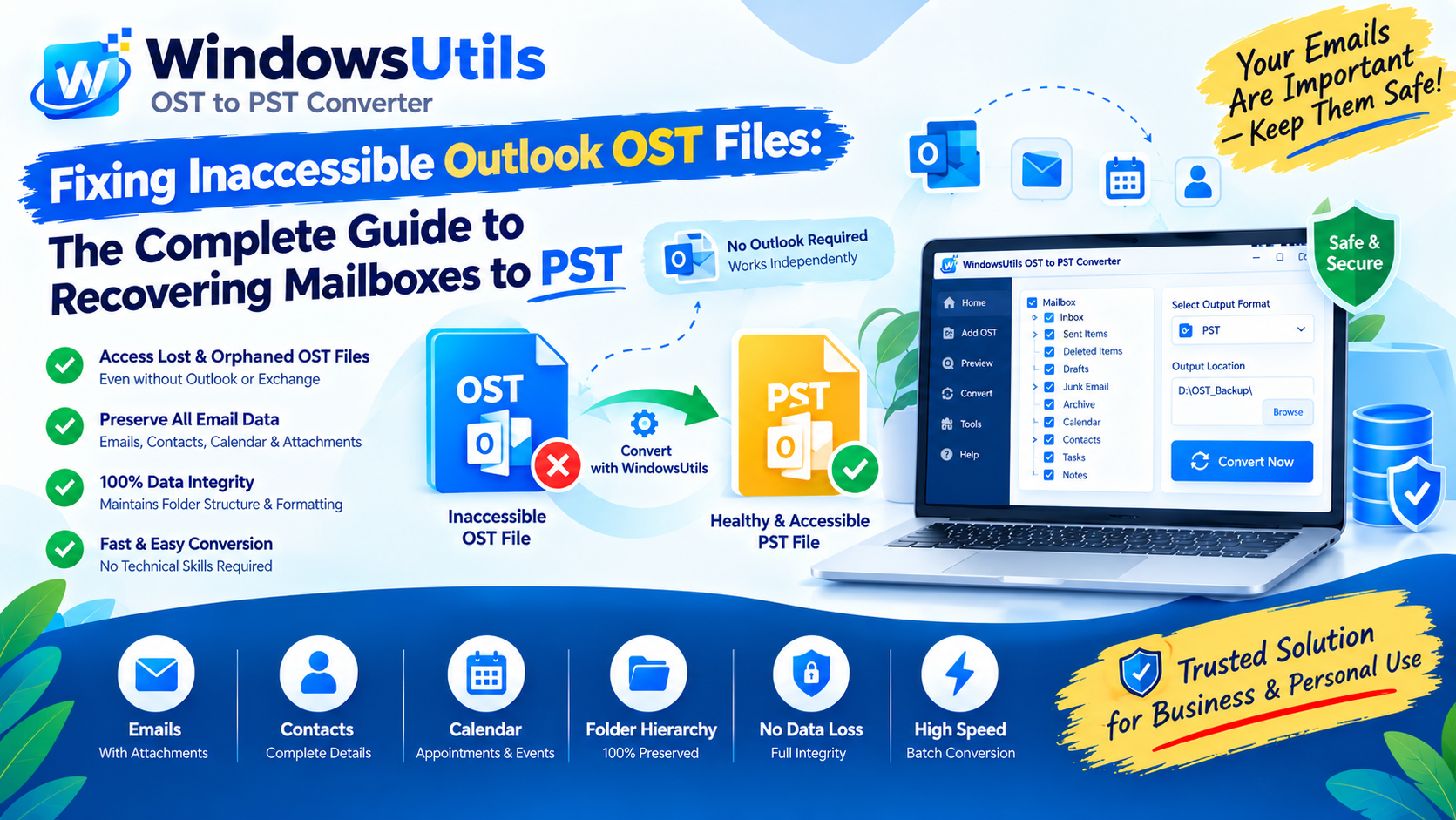
Microsoft Outlook utilizes two primary data file storage formats: Offline Storage Table (.OST) and Personal Storage Table (.PST). While OST files allow you to work seamlessly offline with Exchange, Office 365, or IMAP accounts, they are tied to a specific mail profile and encryption key.
When an Exchange server crashes, an account is deleted, or a machine is migrated, your local OST file becomes orphaned and inaccessible. Outlook will not open or import an orphaned OST directly. In this comprehensive guide, we walk you through the exact methods to convert OST to PST safely and regain access to all your emails, contacts, and calendar appointments.
1. Understanding OST vs PST Files
Before performing any conversion, it is crucial to understand the architectural differences between OST and PST files in Microsoft Outlook.
| Feature | OST File (.ost) | PST File (.pst) |
|---|---|---|
| Primary Purpose | Offline replica of Exchange/IMAP mailbox | Local archive and standalone storage |
| Portability | Locked to original profile and Windows user SID | 100% portable across machines and profiles |
| Importable directly into Outlook? | No. Outlook cannot import raw OST files | Yes. File > Open & Export > Open Outlook Data File |
| Size Limit | Up to 50 GB (configurable via registry) | Up to 50 GB (configurable via registry) |
2. Common Scenarios Requiring OST to PST Conversion
Users and IT administrators routinely encounter scenarios where converting OST to PST becomes mandatory:
• Exchange Server Downtime or Decommissioning: When an on-premise Exchange server fails or is phased out before mailboxes are backed up.
• Employee Departure or Profile Deletion: Accessing an ex-employee's mailbox when their Active Directory account has already been terminated.
• Inaccessible or Corrupted Outlook Profile: When Outlook repeatedly displays errors such as 'The file xxx.ost cannot be opened' or 'Outlook data file cannot be configured'.
• Cross-Platform Migration: Moving email data from an Exchange-based Windows environment to Outlook for Mac or Microsoft 365 tenant-to-tenant.
Pro Engineering Tip
Never delete your original OST file before conversion is completed. Always keep a raw copy backed up in a safe directory.
3. Method 1: Using the Built-in Outlook Import/Export Wizard
If your Outlook application is still active, connected to the Exchange server, and able to open your mailbox, you can utilize the native Export feature:
Step-by-Step Execution Sequence:
Important Safety Precaution
This method requires an active, connected Outlook profile. If your profile is corrupt or the server account is disabled, the Import/Export button will either be greyed out or fail during export.
4. Method 2: Archiving Mail Items into a New PST
Outlook's AutoArchive and manual Archive tools allow you to relocate messages older than a specified date into a standalone PST file:
Step-by-Step Execution Sequence:
5. Why Manual Methods Fail on Orphaned OST Files
Manual methods depend entirely on Microsoft MAPI subsystem handshakes between the local client and the directory server. When dealing with orphaned or corrupt OST files, manual methods encounter fatal roadblocks:
• Hardware / OS changes invalidate the localized MAPI encryption signature embedded in the OST header.
• Soft-deleted items, drafted replies, and deleted subfolders are omitted during standard wizard exports.
• Large OST files exceeding 20 GB frequently crash Outlook during native MAPI exports due to memory exhaustion (in such cases, administrators often need a dedicated PST file splitter to divide massive archives).
6. Method 3: Automated Conversion with WindowsUtils
When manual approaches are impossible, the WindowsUtils OST to PST Converter parses the binary structure of any OST file independently—without requiring Outlook or an active Exchange connection:
Step-by-Step Execution Sequence:
Pro Engineering Tip
WindowsUtils preserves 100% of rich email headers (DKIM, SPF, Message-ID, Received timestamps) alongside inline image attachments and complex table styling.
WindowsUtils OST to PST Converter
Recover inaccessible emails, calendars, contacts, and attachments from orphaned OST files with 100% integrity preservation.
Summary & Final Thoughts
Converting OST to PST does not have to be an intimidating task. If Outlook is still connected, the built-in wizard provides a quick solution. However, for orphaned, corrupted, or oversized OST files, the WindowsUtils OST to PST Converter delivers a dependable, lossless conversion with full data integrity. Need to handle multi-client archives? You can also explore converting MBOX to PDF with attachments for long-term audit compliance.
Expert Answers to Common Inquiries
No. Microsoft Outlook does not support opening or importing standalone .ost files. An OST file can only be accessed by the specific mail profile that created it. To open the contents in Outlook, you must first convert the OST to a PST file.
Alex Vance
Senior Systems & Email Infrastructure Architect
Specializes in Microsoft Exchange architectures, database structures, file forensics, and email platform migrations with over a decade of hands-on data recovery experience.
Related Technical Guides
Explore other tutorials on email migration, format conversions, and database repair.
 Email Migration
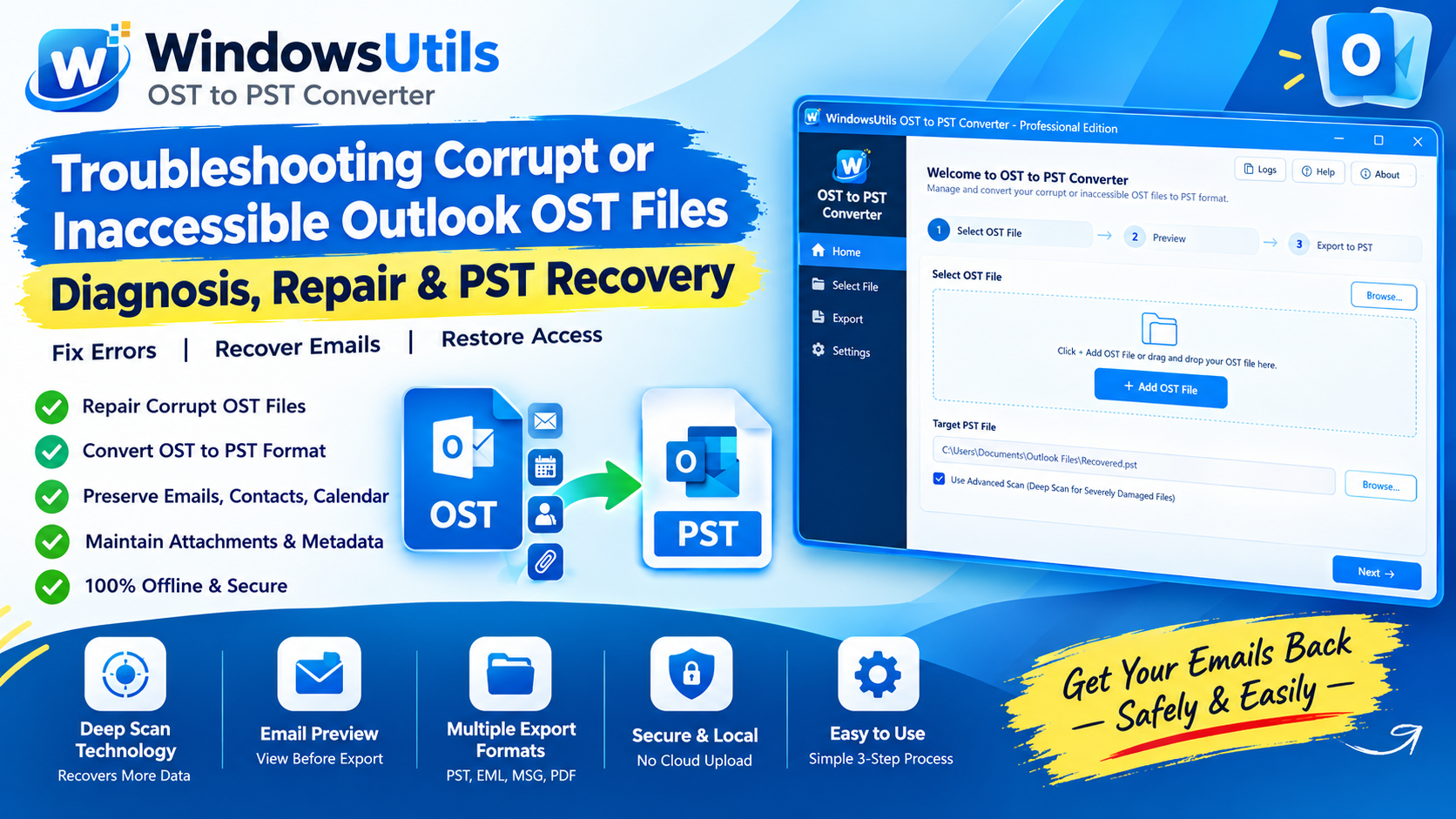
Top OST to PST Conversion Software Compared: 2026 Independent Performance Benchmark
We benchmarked leading OST to PST converter utilities across 50GB corrupt files, orphaned Exchange profiles, and non-English character sets. See the verified rankings.
 Email Migration
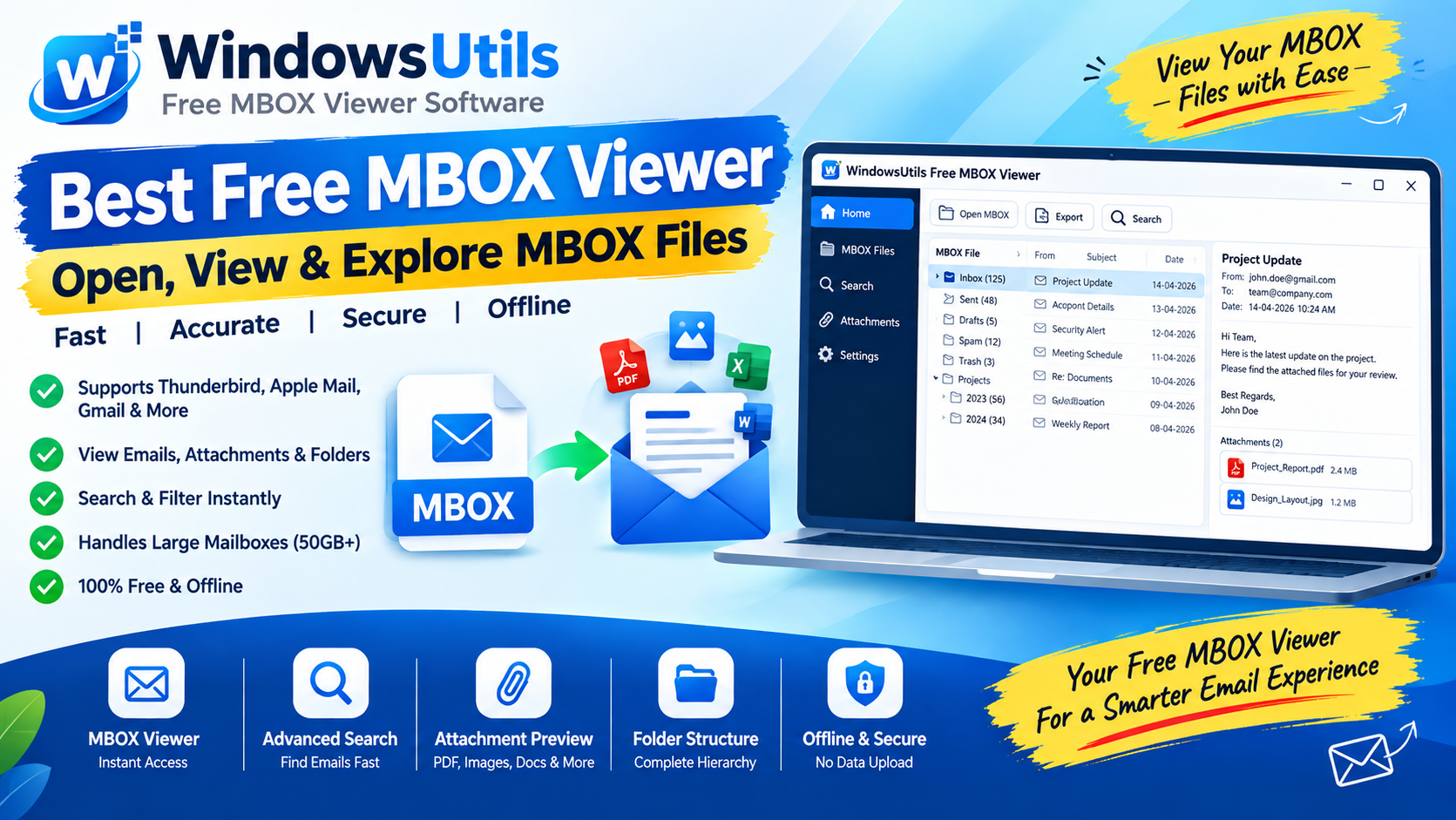
Exporting MBOX Mailboxes to Searchable PDF with Intact Attachments: 4 Tested Workflows
Step-by-step guide to converting MBOX email archives to high-fidelity PDF documents with embedded attachments. Ideal for legal, auditing, and archival workflows.
 Outlook Tips
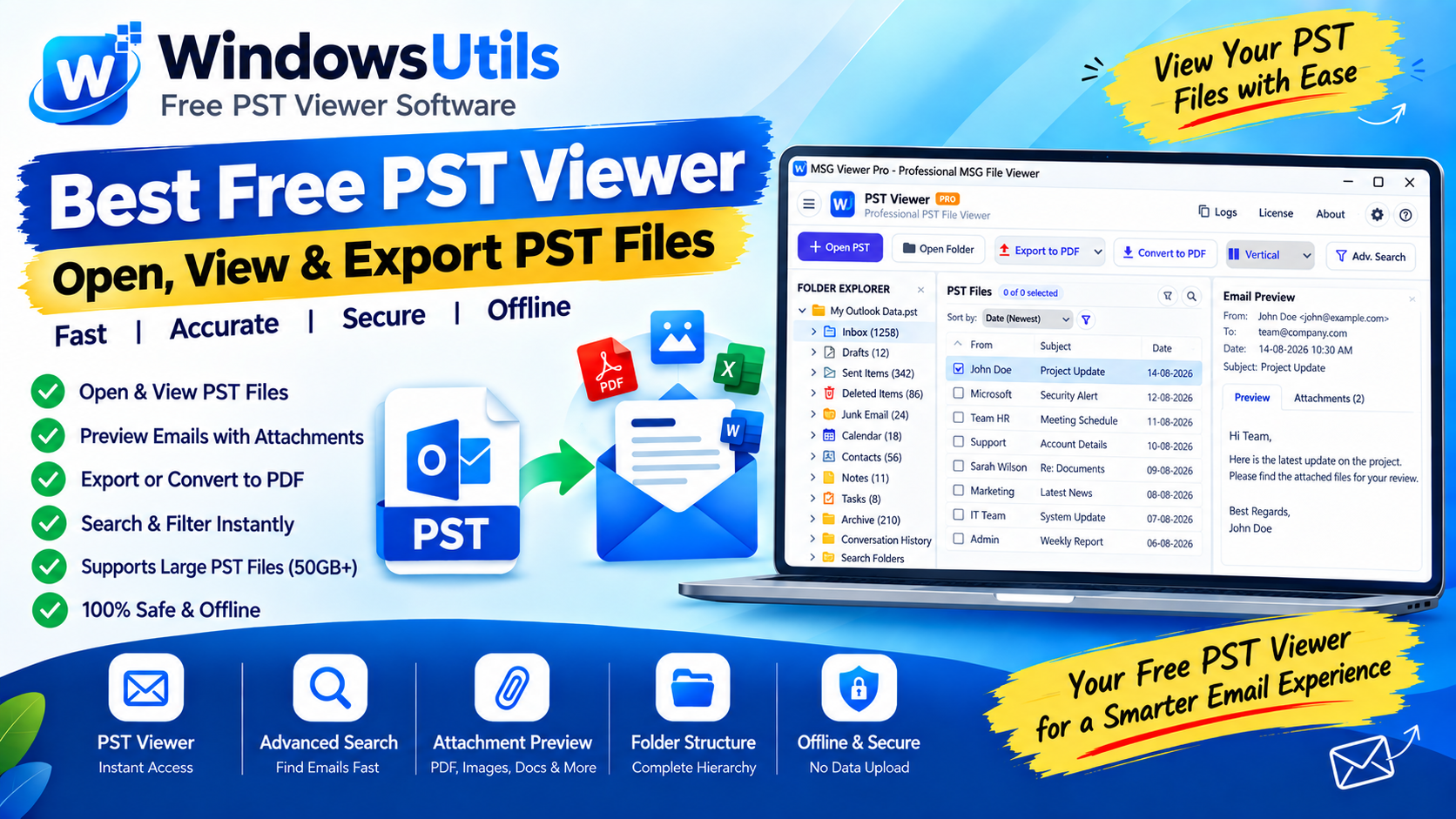
Defeating the 50GB Limit: How to Safely Divide Oversized Outlook PST Files
Prevent severe mailbox corruption and Outlook freezes. Learn how to split massive PST files exceeding 20GB and 50GB into smaller, high-performance archives.