Exporting MBOX Mailboxes to Searchable PDF with Intact Attachments: 4 Tested Workflows
Step-by-step guide to converting MBOX email archives to high-fidelity PDF documents with embedded attachments. Ideal for legal, auditing, and archival workflows.


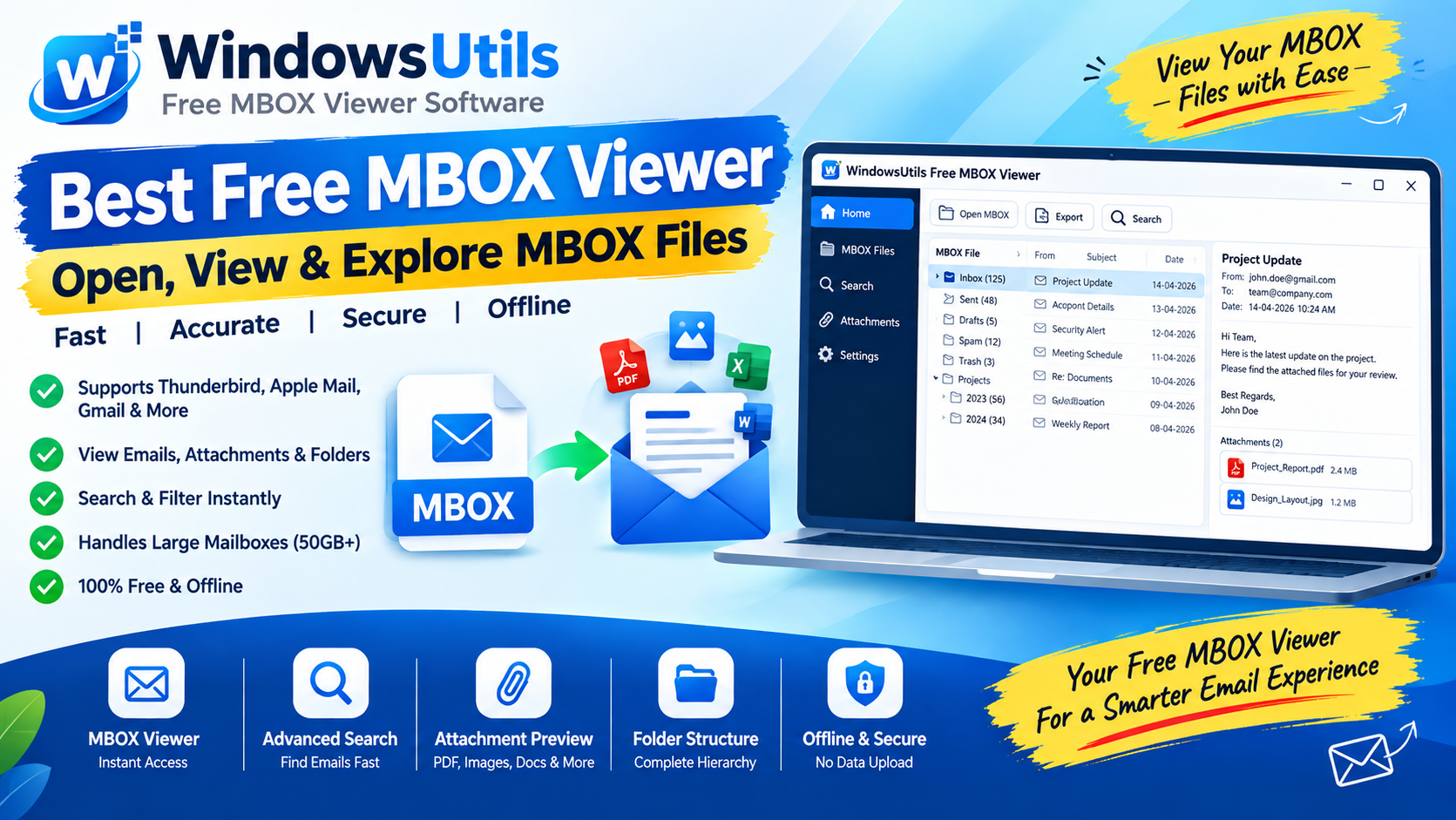
The MBOX file format is the standard mailbox format utilized by over 30 email clients worldwide, including Mozilla Thunderbird, Apple Mail, Eudora, SeaMonkey, Opera Mail, and Google Takeout archives.
However, MBOX is a raw concatenated plain-text file that cannot be opened on machines without dedicated email clients. For legal discovery (eDiscovery), regulatory compliance, client presentations, or long-term archiving, PDF (Portable Document Format) is the gold standard.
In this in-depth guide, we explore the most effective ways to convert MBOX emails to PDF—paying special attention to preserving email attachments, MIME formatting, and metadata integrity using an automated MBOX to PDF converter.
1. Why Convert MBOX Mailboxes to PDF?
Converting email archives into PDF containers offers unmatched advantages for legal professionals, compliance auditors, and enterprise system administrators:
• Universal Accessibility: Anyone can open, view, and print a PDF on Windows, macOS, iOS, Android, or Linux without installing an email client.
• Tamper-Evident Integrity: PDFs can be digitally signed, password-protected, and read-only, preventing fraudulent message tampering in legal disputes.
• Legal Discovery & Bates Stamping: PDF files seamlessly support Bates numbering, custom headers/footers, and page numbers required for court exhibits.
• Archival Permanence: The PDF/A ISO standard guarantees that your correspondence will remain readable decades into the future regardless of software obsolescence.
2. Method 1: Mozilla Thunderbird ImportExportTools NG Add-on
For users actively running Mozilla Thunderbird, the community-maintained add-on ImportExportTools NG enables direct PDF exports:
Step-by-Step Execution Sequence:
Important Safety Precaution
ImportExportTools NG frequently detaches or loses non-standard MIME attachments during PDF printing. For mailboxes exceeding 1,000 emails, Thunderbird can freeze due to memory leaks.
3. Method 2: Manual 'Print to PDF' Feature
If you only need to convert a few critical emails, the native Windows Print to PDF virtual printer is completely free and requires zero third-party software:
Step-by-Step Execution Sequence:
Pro Engineering Tip
While simple, manual printing does not embed binary attachments (such as spreadsheets, ZIP archives, or PDFs) into the generated document—only the email text body is captured.
4. The Challenge of Preserving Attachments in PDF
Standard print engines flatten documents into visual pages, completely discarding binary attachments. In professional and legal settings, missing attachments render an email record legally incomplete.
There are two primary architectural solutions for preserving attachments in PDF format:
1. Embedded Attachments: Embedding original files as interactive PDF attachments inside the Adobe Acrobat navigation panel.
2. Appended Pages: Converting supported attachments (DOCX, PNG, JPG, PDF) into appended pages directly following the email message body.
5. Method 3: Automated Batch Conversion with WindowsUtils
The WindowsUtils MBOX to PDF Converter solves batch processing hurdles by operating directly on raw MBOX files without requiring Thunderbird or any email client. If you only need to inspect messages without converting, you can also use our free MBOX viewer:
Step-by-Step Execution Sequence:
Pro Engineering Tip
WindowsUtils runs 100% locally on your machine. Sensitive communications never leave your network, satisfying strict HIPAA, GDPR, and enterprise privacy standards.
WindowsUtils MBOX to PDF Converter
Batch export MBOX mailboxes to searchable PDF documents with embedded attachments and Bates numbering for legal and archiving compliance.
Summary & Final Thoughts
While manual printing works for a handful of emails, large-scale email discovery and compliance demand automated tooling. The WindowsUtils MBOX to PDF Converter provides an enterprise-ready pipeline to turn massive MBOX archives into pristine, searchable PDF portfolios with all attachments intact. For quick message inspection without conversion, try our free MBOX viewer.
Expert Answers to Common Inquiries
Yes. Google Takeout exports your entire Gmail mailbox as a single .mbox archive. WindowsUtils can load giant multi-gigabyte Takeout MBOX files and convert them into organized, indexed PDF documents.
Sarah Jenkins
Data Recovery & Forensic Analysis Lead
Specializes in Microsoft Exchange architectures, database structures, file forensics, and email platform migrations with over a decade of hands-on data recovery experience.
Related Technical Guides
Explore other tutorials on email migration, format conversions, and database repair.
 PDF Management
Bates Numbering Demystified: Federal Court Standards, Prefix Formatting & Automated Stamping
Comprehensive guide to Bates numbering in legal discovery and courtroom submissions. Learn standard prefix conventions, zero-padding, and offline batch stamping workflows.
 Email Migration
Fixing Inaccessible Outlook OST Files: The Complete Guide to Recovering Mailboxes to PST
Learn how to recover inaccessible or orphaned Outlook OST files to portable PST format without data loss. Covers native export and automated offline conversion methods.
 Email Migration
Migrating Mozilla Thunderbird to Outlook & Microsoft 365: Step-by-Step Folder & Mail Transfer
Detailed walkthrough for moving emails, contact address books, and complete folder trees from Mozilla Thunderbird to Microsoft Outlook on Windows.