Cold Storage for Mailboxes: How to Transfer IMAP Inboxes Directly to an External Hard Drive
Create an air-gapped physical backup of your IMAP mailboxes on portable USB hard drives and SSDs. Includes drive filesystem considerations and format selection.


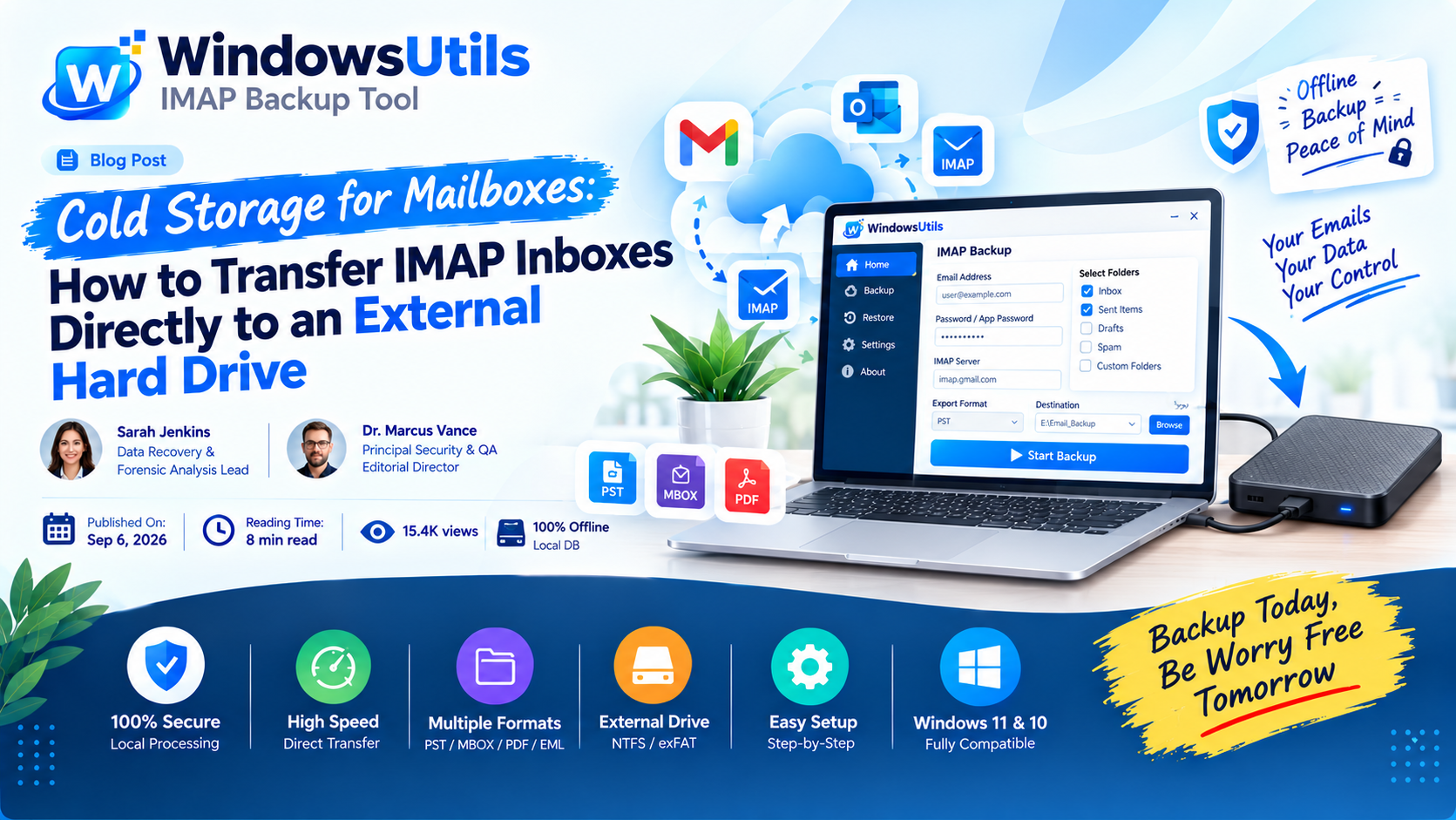
While cloud email providers like Google Workspace, Office 365, Zoho, and cPanel webmail boast high server uptime, they do not protect you against accidental account deactivations, billing disputes, or malicious ransomware encryption.
Storing an immutable, offline copy of your correspondence on a physical USB hard drive or external SSD is the single most reliable disaster recovery strategy. In this step-by-step tutorial, we demonstrate how to export your entire IMAP account directly to an external drive on Windows using reliable IMAP backup software.
1. Why Cloud Webmail Requires Physical Offline Backups
Most users assume cloud email is automatically backed up. In reality, cloud providers operate under a 'Shared Responsibility Model': they guarantee infrastructure uptime, but you remain solely responsible for your own data retention.
Synchronizing an account via standard desktop clients only creates a temporary cache. If an admin deletes a folder or an inbox is purged, client synchronization immediately replicates that deletion. Archiving with an independent Gmail backup tool or IMAP backup utility guarantees physical data ownership.
Pro Engineering Tip
Always keep your primary backup external drive disconnected when not actively backing up to prevent networked ransomware infections.
2. Preparing Your External Hard Drive for Mail Storage
Before saving gigabytes of email archives, verify your external drive filesystem. Avoid older FAT32 drives which fail when individual archive files exceed 4 GB.
Format your external hard drive with NTFS or exFAT to support large multi-gigabyte PST files without file size limitations.
Important Safety Precaution
Ensure your external drive has at least 25% extra free space beyond your current mailbox size to accommodate archive re-indexing and compression overhead.
3. Step-by-Step: Exporting IMAP Accounts to External Drive
Using WindowsUtils IMAP Backup Software, you can automate direct exports to external USB drives without intermediate disk staging.
Step-by-Step Execution Sequence:
Pro Engineering Tip
For court submissions or compliance audits, consider pairing this with a [MBOX to PDF converter](/software/mbox-to-pdf) to create Bates-stamped document bundles.
4. Choosing the Best File Format (PST vs MBOX vs PDF)
Selecting the correct container format depends on how you plan to use your archives in the future:
• PST (Personal Storage Table): Best if you use Microsoft Outlook and need to search, reply to, or re-import archived emails seamlessly.
• MBOX / EML: Open standard formats supported by Thunderbird, Apple Mail, and Unix mail tools.
• PDF: Universal format readable on any operating system, smartphone, or tablet without needing email software.
WindowsUtils IMAP Backup Software
Archive any webmail or cloud mailbox directly to external hard drives or local PC storage in portable PST, EML, MBOX, or searchable PDF format.
Summary & Final Thoughts
Backing up IMAP emails directly to an external hard drive gives you 100% independence from cloud service providers. With a local offline archive, your historical business communications, invoices, and contracts remain safe from account lockouts and cloud outages.
Expert Answers to Common Inquiries
Yes. WindowsUtils allows you to create separate archive folders for each email address on your external drive with independent folder trees.
Sarah Jenkins
Data Recovery & Forensic Analysis Lead
Specializes in Microsoft Exchange architectures, database structures, file forensics, and email platform migrations with over a decade of hands-on data recovery experience.
Related Technical Guides
Explore other tutorials on email migration, format conversions, and database repair.
 Backup & Recovery
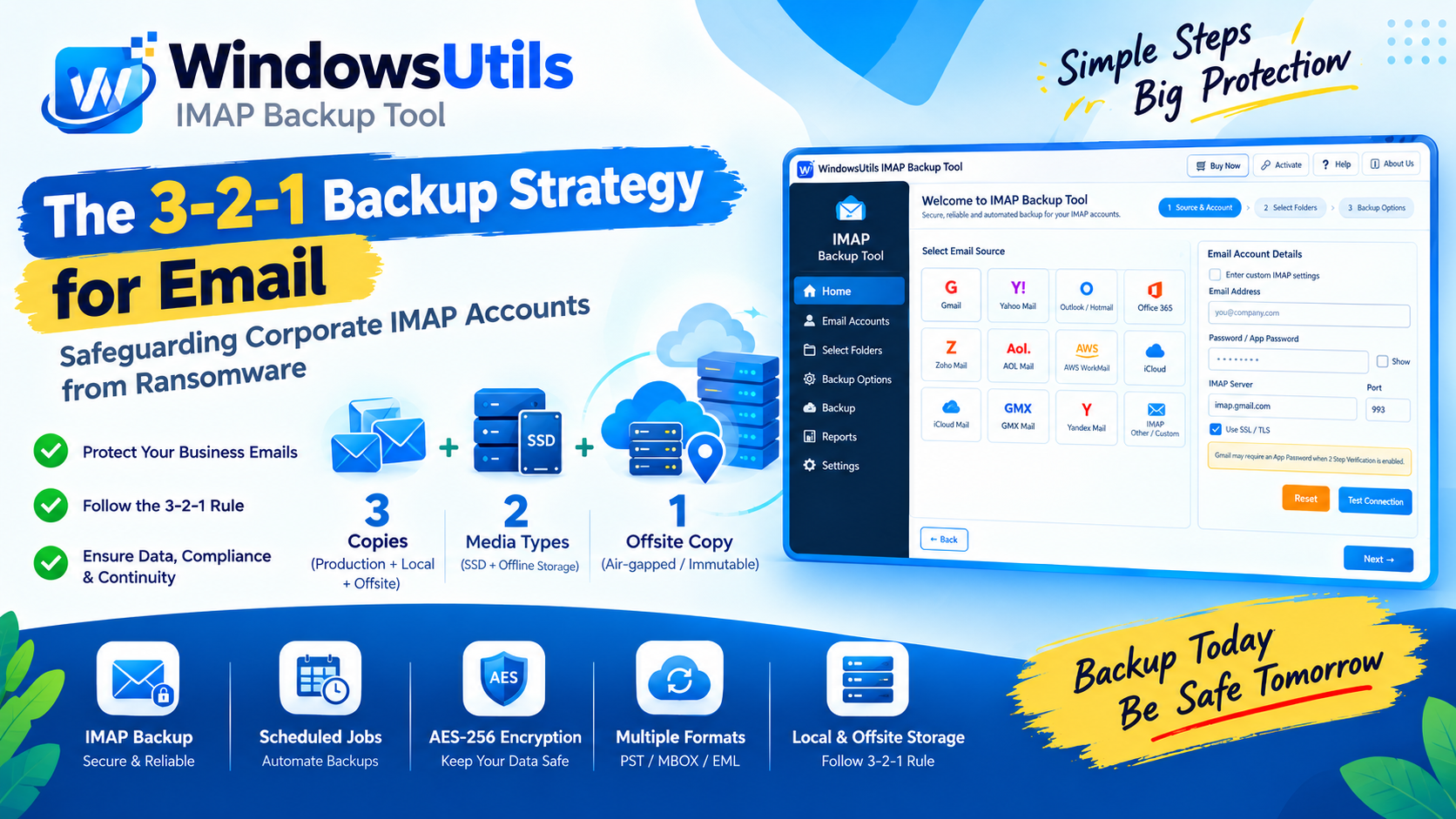
The 3-2-1 Backup Strategy for Email: Safeguarding Corporate IMAP Accounts from Ransomware
Implement a resilient 3-2-1 backup architecture for enterprise email accounts. Prevent data loss from account hijacking, ransomware, and cloud provider downtime.
 Backup & Recovery
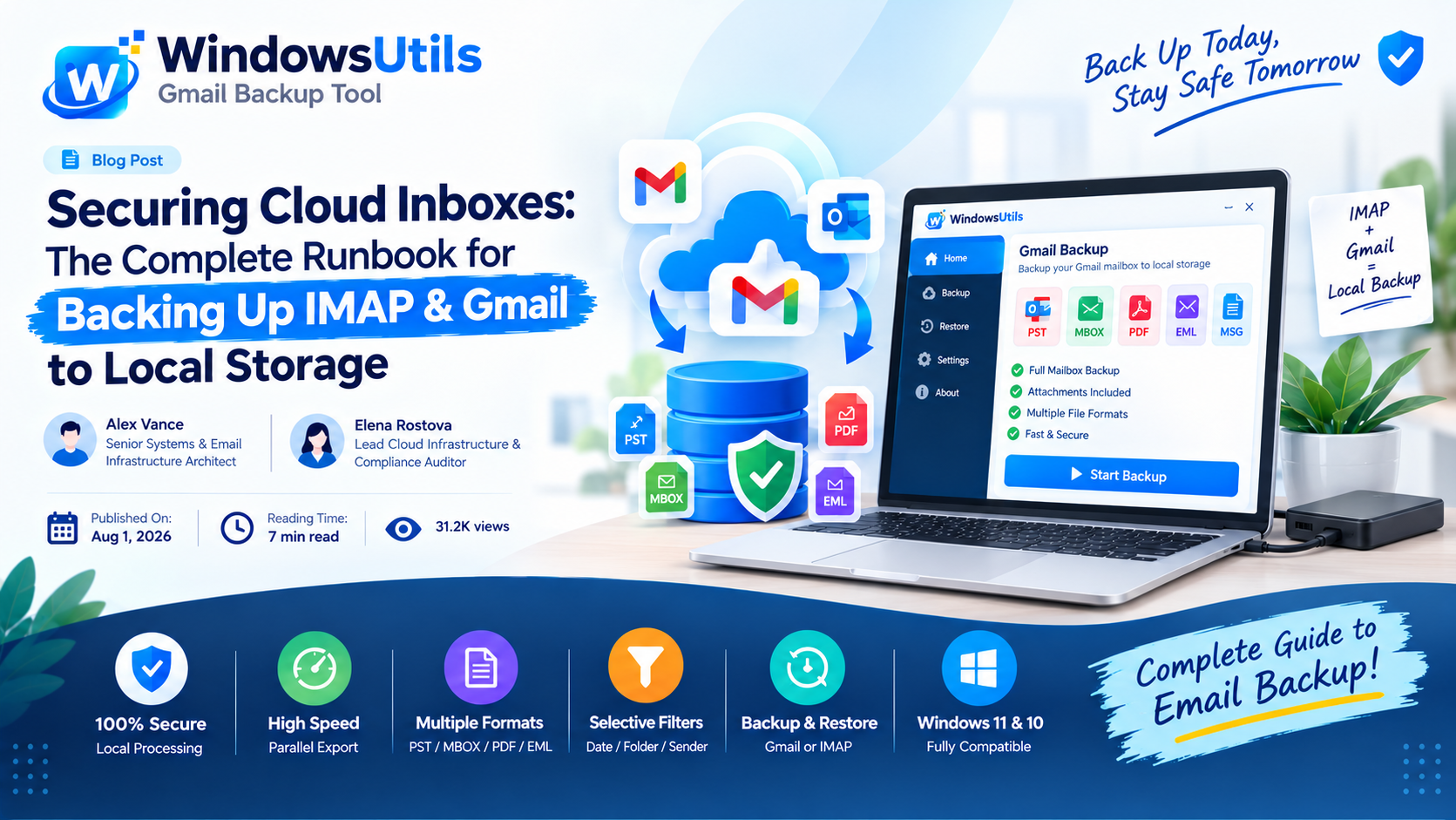
Securing Cloud Inboxes: The Complete Runbook for Backing Up IMAP & Gmail to Local Storage
Don't rely exclusively on cloud providers. Learn how to export complete IMAP and Gmail mailboxes to local offline storage formats like PST, MBOX, and EML.
 Backup & Recovery
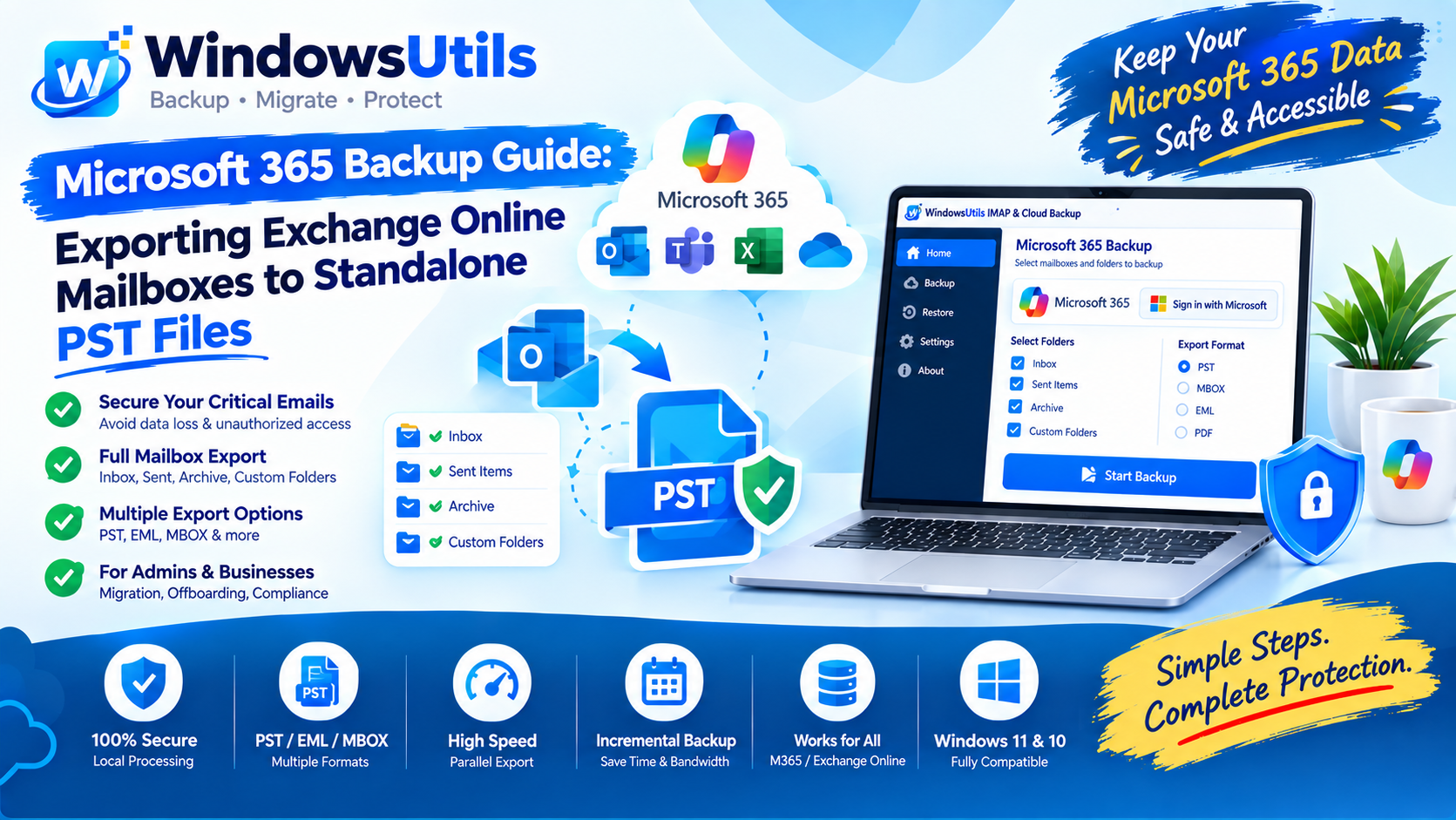
Microsoft 365 Backup Guide: Exporting Exchange Online Mailboxes to Standalone PST Files
Step-by-step administrator and end-user guide to exporting Microsoft 365 (Exchange Online) mailboxes to local PST storage using eDiscovery and desktop tools.