Offline PDF Manipulation: Merging Complex Bundles and Extracting Page Ranges on Windows
Combine multiple reports, contracts, and scans into a single PDF, or extract individual pages with zero risk of cloud data leakage on Windows 11 and 10.


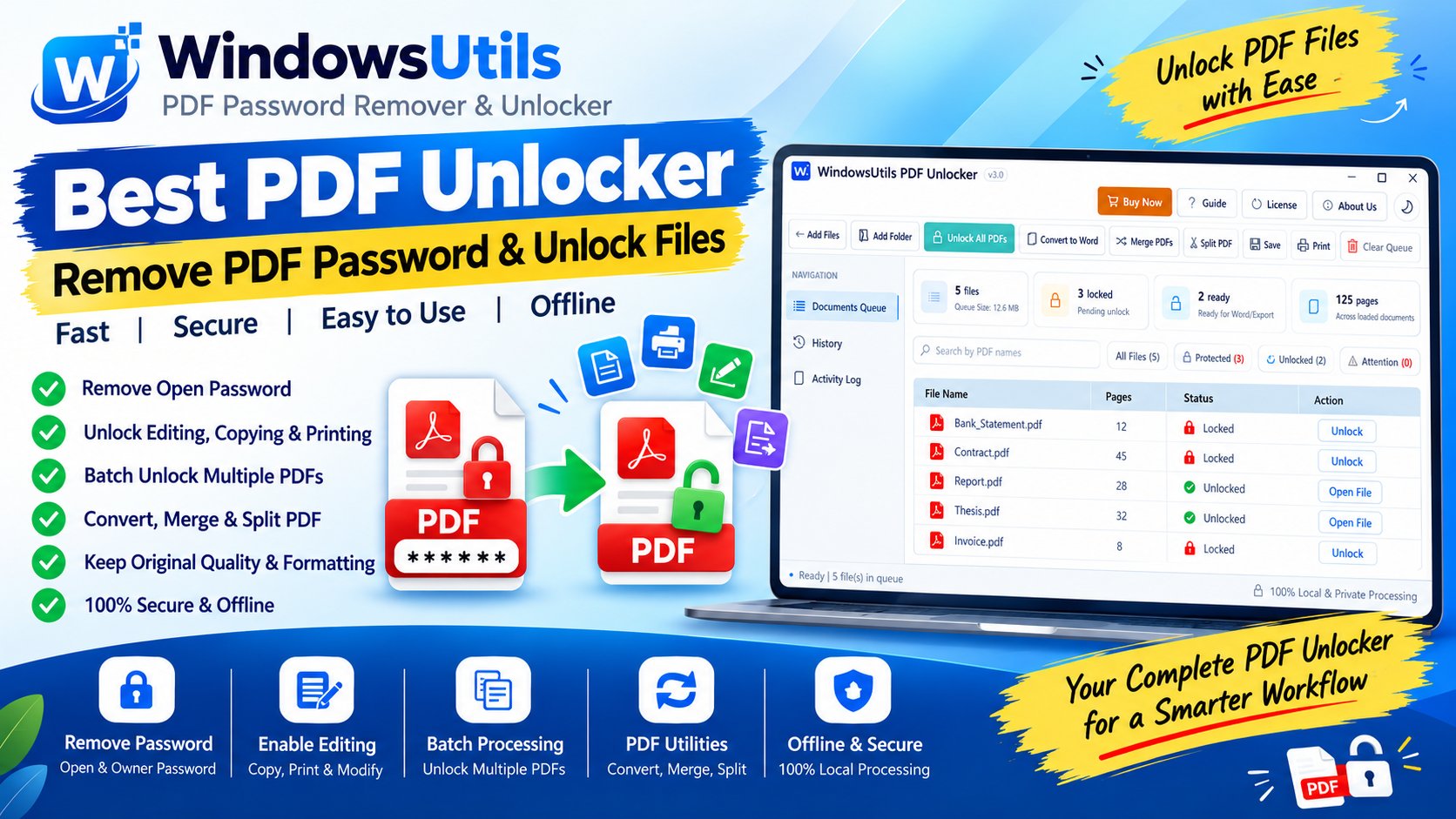
In modern office environments, document assembly is a daily necessity. An accountant needs to combine quarterly balance sheets, tax receipts, and auditor notes into a single annual report. An attorney needs to extract three specific exhibit pages from a 400-page deposition transcript.
While countless free web services allow you to PDF Toolbox or split PDFs in a web browser, uploading confidential business records, personnel evaluations, or client contracts to third-party cloud servers poses grave security and regulatory liabilities. Here is how to merge and split PDF files offline on Windows quickly and securely.
1. Why Offline PDF Merging and Splitting Is Essential
Corporate data governance and regulatory compliance frameworks (including GDPR, HIPAA, SOC 2, and CCPA) explicitly prohibit uploading non-public personal data to unauthorized web services.
Offline desktop software executes all memory allocation, byte manipulation, and PDF compilation locally on your machine's CPU and RAM—meaning zero bytes of your confidential documents ever touch the internet.
2. How to Merge Multiple PDFs into One Clean Document
Merging multiple PDF documents using WindowsUtils PDF Toolkit is straightforward:
Step-by-Step Execution Sequence:
3. How to Split and Extract Page Ranges Accurately
Splitting oversized PDF files can be configured according to multiple workflow criteria:
| Splitting Mode | How It Operates | Best Use Case |
|---|---|---|
| Split by Page Range | Extracts specific custom pages (e.g., '1-5, 8, 12-20') | Extracting specific contracts or exhibit sections |
| Split into Single Pages | Divides a 100-page PDF into 100 separate 1-page documents | Processing scanned individual invoice receipts |
| Split by Fixed Count | Splits every N pages (e.g., into 5-page bundles) | Standardized monthly employee reports |
| Split by Bookmarks | Splits wherever a top-level outline bookmark appears | Dividing large manuals or legal briefs into chapters |
4. Preserving Bookmarks, Outlines, and Interactive Form Fields
Primitive PDF splitters often strip document navigation outlines, hyperlinks, and AcroForm interactive fields, forcing you to manually re-create bookmarks.
WindowsUtils features an intelligent tree-remapping engine that automatically recalculates bookmark destination page numbers when merging or splitting, preserving full interactive navigation.
Pro Engineering Tip
When merging documents with fillable forms, ensure 'Preserve Form Fields' is checked so user-entered data is not discarded.
5. Cloud Mergers vs Desktop Offline Utilities
Beyond security advantages, desktop utilities completely outclass web tools in performance. Uploading a 200MB PDF to a cloud service takes several minutes on standard broadband, followed by server queue delays.
A local 64-bit desktop engine reads files directly from your SSD at over 1,500 MB/s, merging 500 pages in less than three seconds.
WindowsUtils PDF Management Toolkit
Merge dozens of separate PDF reports into unified portfolios or split multi-hundred page documents by bookmark, page count, or range completely offline.
Summary & Final Thoughts
Managing PDF page hierarchies should be fast, reliable, and completely private. With WindowsUtils PDF Management Toolkit, you get total control over document merging and page extraction without cloud vulnerabilities.
Expert Answers to Common Inquiries
Yes. WindowsUtils seamlessly combines portrait and landscape pages into a single document while preserving the original layout of each individual page.
Elena Rostova
Lead Cloud Infrastructure & Compliance Auditor
Specializes in Microsoft Exchange architectures, database structures, file forensics, and email platform migrations with over a decade of hands-on data recovery experience.
Related Technical Guides
Explore other tutorials on email migration, format conversions, and database repair.
 PDF Management
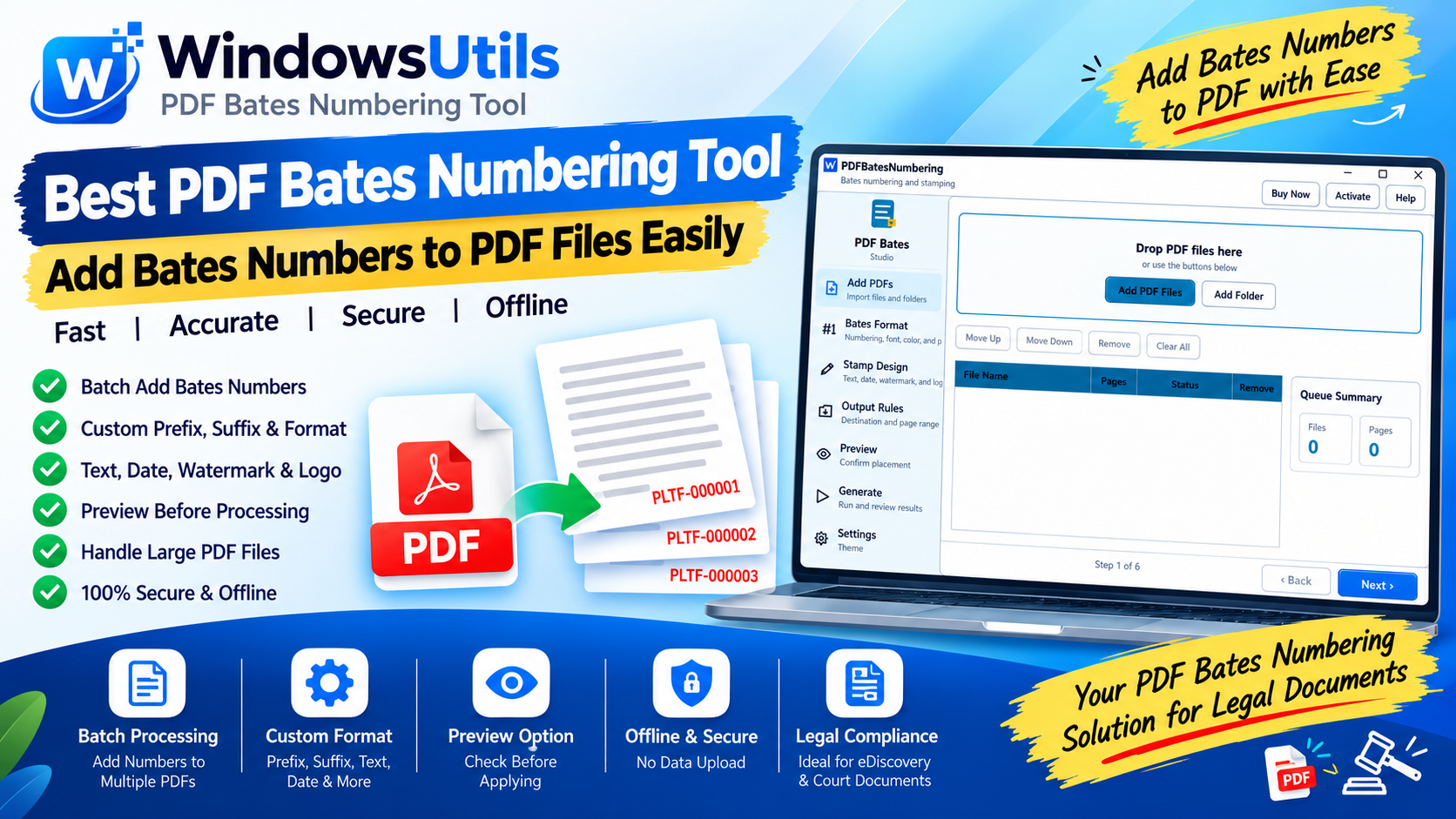
Bates Numbering Demystified: Federal Court Standards, Prefix Formatting & Automated Stamping
Comprehensive guide to Bates numbering in legal discovery and courtroom submissions. Learn standard prefix conventions, zero-padding, and offline batch stamping workflows.
 PDF Management
Optimizing Heavy PDF Files: Downsampling, Stream Compression & Font Subsetting Explained
Shrink multi-hundred-megabyte PDF portfolios for email and web upload. Understand image downsampling, Flate compression, and font subsetting without sacrificing readability.
 PDF Management
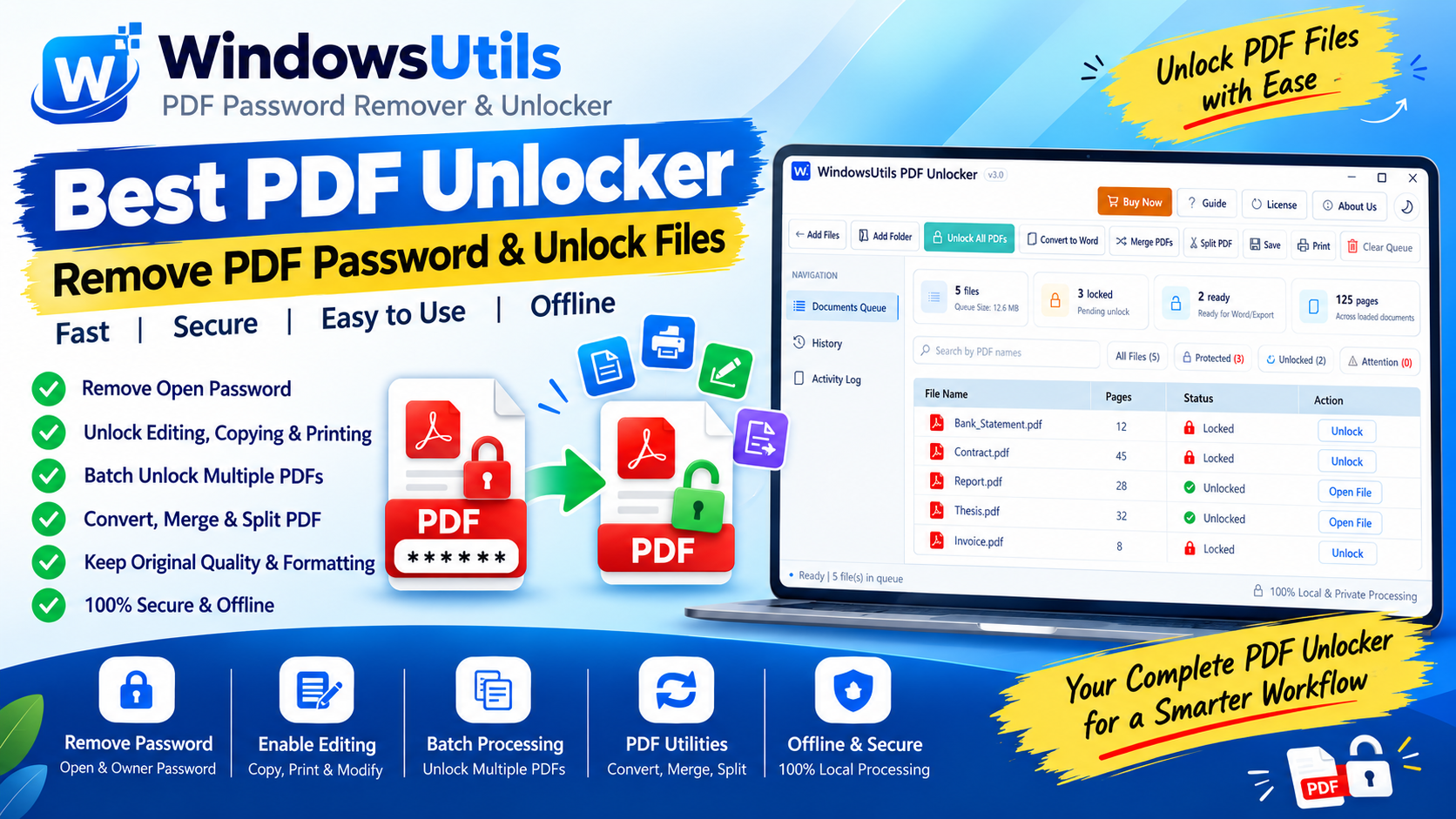
Unlocking Restricted PDFs: How to Remove Owner & Permission Passwords Safely Offline
Need to print, copy, or edit a password-protected PDF? Learn how to eliminate owner restriction passwords safely on Windows without Adobe Acrobat or shady cloud portals.