How to Remove Outlook PST Password
Remove Outlook PST password using 3 simple methods. Follow this step-by-step guide to unlock password-protected PST files and access your Outlook data.


Introduction
Did you discover an old Outlook PST file on your PC, but lack access to it because you don't know the passcode? Think it can't happen? Think again. You probably protected the email archive's contents with a password, then can no longer remember the password you selected.
Your Outlook PST file Password Remover can hold years of useful data, from work emails and client messages to file attachments, contacts, and appointments. If you are missing an Outlook file then your life can get a little more difficult especially if you need an e-mail from two years ago for your work or personal account.
Password-protect PST files with Microsoft Outlook. Still, can you remove password protection from a PST file if you remember the password?
If you still recall your password, you can simply use the available options in Outlook to clear the password. However, if you've forgotten the password, then you may want to search for a recovery tool or an older backup.
In this post, we will demonstrate three easy ways to How to remove Outlook PST Passwordand explain when to use each one, and a few tips to keep the emails safe.
A typical Outlook PST file can contain:
- All your incoming, outgoing, and stored email messages (including attachments).
- Contacts: Names, email addresses, phone numbers, and other contact info you've stored.
- Calendar: Appointments, meetings, reminders, and scheduled events.
- Tasks & Notes: Reminders to yourself, work tasks and saved notes.
- Email Folders: Custom folders, archived conversations in your mailbox.
- PST files for migrating mailboxes, backing up emails and creating a long-term archive.
As these files might be sensitive in nature, Outlook also lets you secure these files with a password.
Why Do People Need to Remove Outlook PST Password?
The answer for deleting a PST password varies based on the purpose of the Outlook data file. Some seek faster access to their archived emails, and some are seeking to retrieve information from an outdated backup.
Some cases in which you may need to remove PST password protection are as follows:
1. You Have Forgotten the Old PST Password
Maybe you set a password for your Outlook archive a few years ago and have only ever accessed the file once or twice. Now you need to access those archived emails, you realize you have forgotten the password.
You are very unlikely to be able to open the protected PST without the right login credentials.
2. You Open Archived Emails Regularly
You might be using different PSTs for each project, client or year. Constantly opening a new archive means needing to put in a password to access each one.
If you remember your existing password you can remove password protection to make these files easier to access.
3. You Are Moving Your Outlook Data to Another Computer
PC and installing Outlook, you will also copy various PST files.
If reducing the password barrier to your archived mailbox after migrating is desired, consider the following.
4. You Want to Organize Your Email Backups
It can be difficult to keep multiple password protected archives straight if each one has a different password.
Some individuals favor leaving the local backup files available without the need to reenter passwords.
5. Outlook Keeps Asking for a PST Password
Repeated login prompts can be distracting if you work with archived email data often. This situation becomes even more annoying when you change between multiple Outlook data files frequently.
There are two password removal options that can help you deal with this situation.
How to Remove Password Outlook PST: 3 Possible Ways
Prior to beginning, find your initial PST file and also make a duplicate of it. Save your original PST file away until you are able to completely access your mailbox data
Choose the method that matches your situation.
Method 1: Remove PST Password Through Microsoft Outlook
You need to download a third party tool if you already know the password. All you need is you are familiar with the password then you need not download any other application.
This is generally the most straightforward approach.
Follow these instructions:
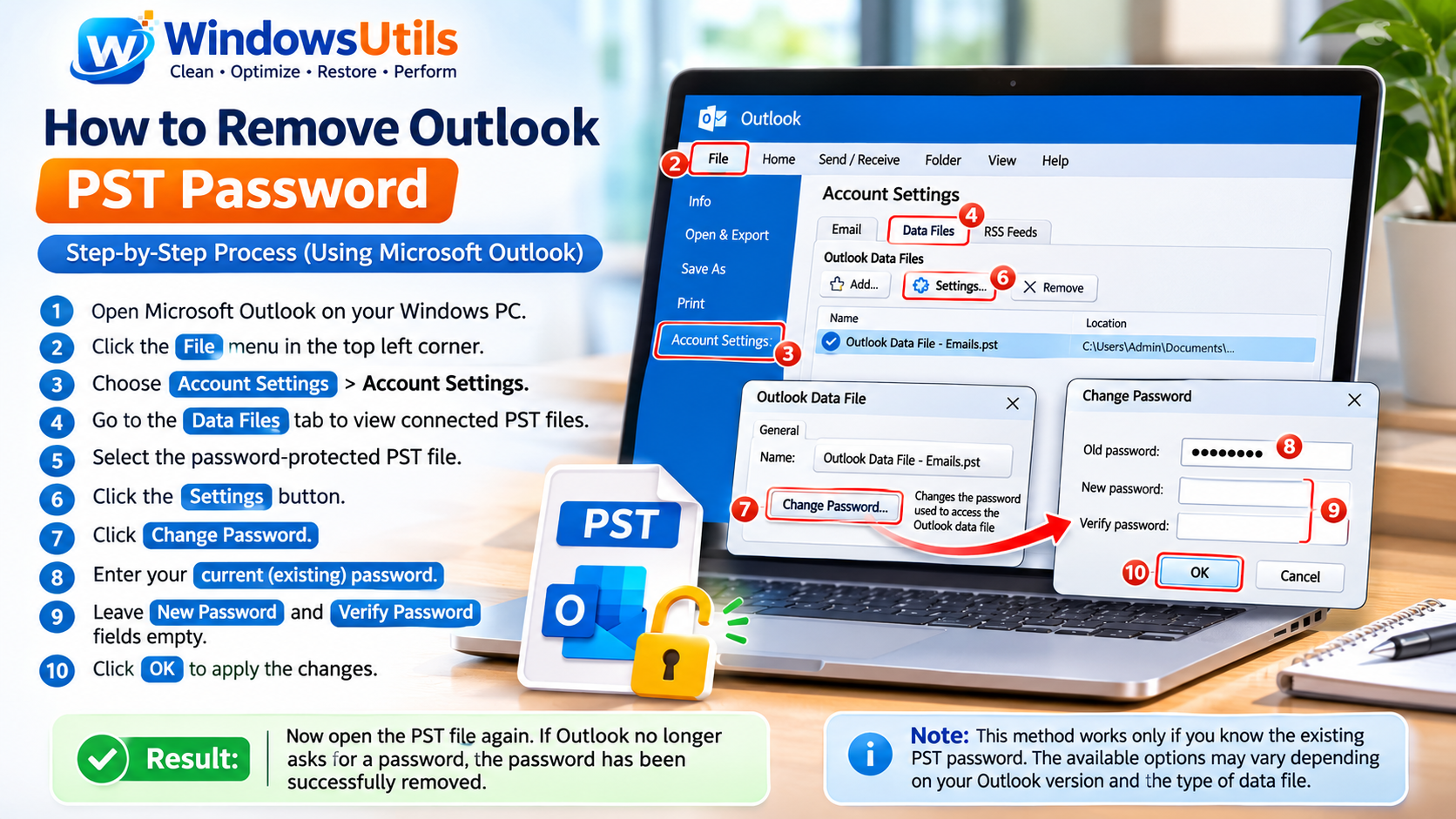
1. Open Microsoft Outlook on your Windows PC.
2. Select the File menu in the top left corner.
3. Choose Account Settings, and then select Account Settings again.
4. Expand the Data Files tab to see the Outlook data files that are connected.
5. Choose the password protected PST file you wish to change.
6. Click the Settings button.
7. Locate and press Change Password if available.
8. Insert the user's password to which you currently want to protect the PST file.
9. Do not provide a new password or verify password.
10. Click OK to apply the changes.
When you've finished adjusting the settings, close the dialog box and try opening the PST file again.
If Outlook stopped prompting for password, the modification has been implemented successfully.
This method can only be used if you know the existing PST password. The options for this method may also depend on your specific version of Outlook and the type of data file you are using.
Method 2: Use a PST Password Recovery Tool
What if you have forgotten your password and you cannot change it in Outlook?
However, this may be when a specialized PST password recovery program would be advantageous.
Unlike Outlook's own pre-installed settings, external recovery tools are able to operate directly with the PST file if it is secured by a password. But some have more advanced features and recover more data than others.
Here is the general process:
1. Look for a trusted Outlook PST password recovery software.
2. Visit the software developer's official website.
3. Download the Windows installation package.
4. Install the application and launch it.
5. Browse and locate the secure PST file to find on your computer.
6. Attempt the recovery guide from the app.
7. Review the results and recovery options.
8. When you've recovered the password, open the PST in Outlook and remove the password from the file.
Before installing any other third-party utility, determine that the utility is compatible with the version of your PST and Outlook. Then consider the security policies of the utility and stay away from tools that make exaggerated recovery claims.
Another thing: your Outlook archive might have business-sensitive, customer-sensitive or even personal files or emails attached to them. Please don't upload those into some unknown online service to get a password.
Method 3: Open an Earlier Outlook PST Backup
You might not need to waste time restoring an old password. Perhaps you have another duplicate of this Outlook archive saved elsewhere on your computer or on an external drive.
If that backup is available, then it can be used to recover the necessary emails.
This technique is handy, especially if you have taken multiple backup copies of your Outlook data earlier.
Follow these steps:
1. Look for Older Pst Files on Your Computer, External Drive, or Backup Folder.
2. List another backup that might include the needed mailbox data.
3. Open with another copy.
Expert Answers to Common Inquiries
Yes, our tested method handles enterprise workloads securely without truncation.
Alex Vance
Senior Systems & Email Infrastructure Architect
Specializes in Microsoft Exchange architectures, database structures, file forensics, and email platform migrations with over a decade of hands-on data recovery experience.
Related Technical Guides
Explore other tutorials on email migration, format conversions, and database repair.
 Email Migration
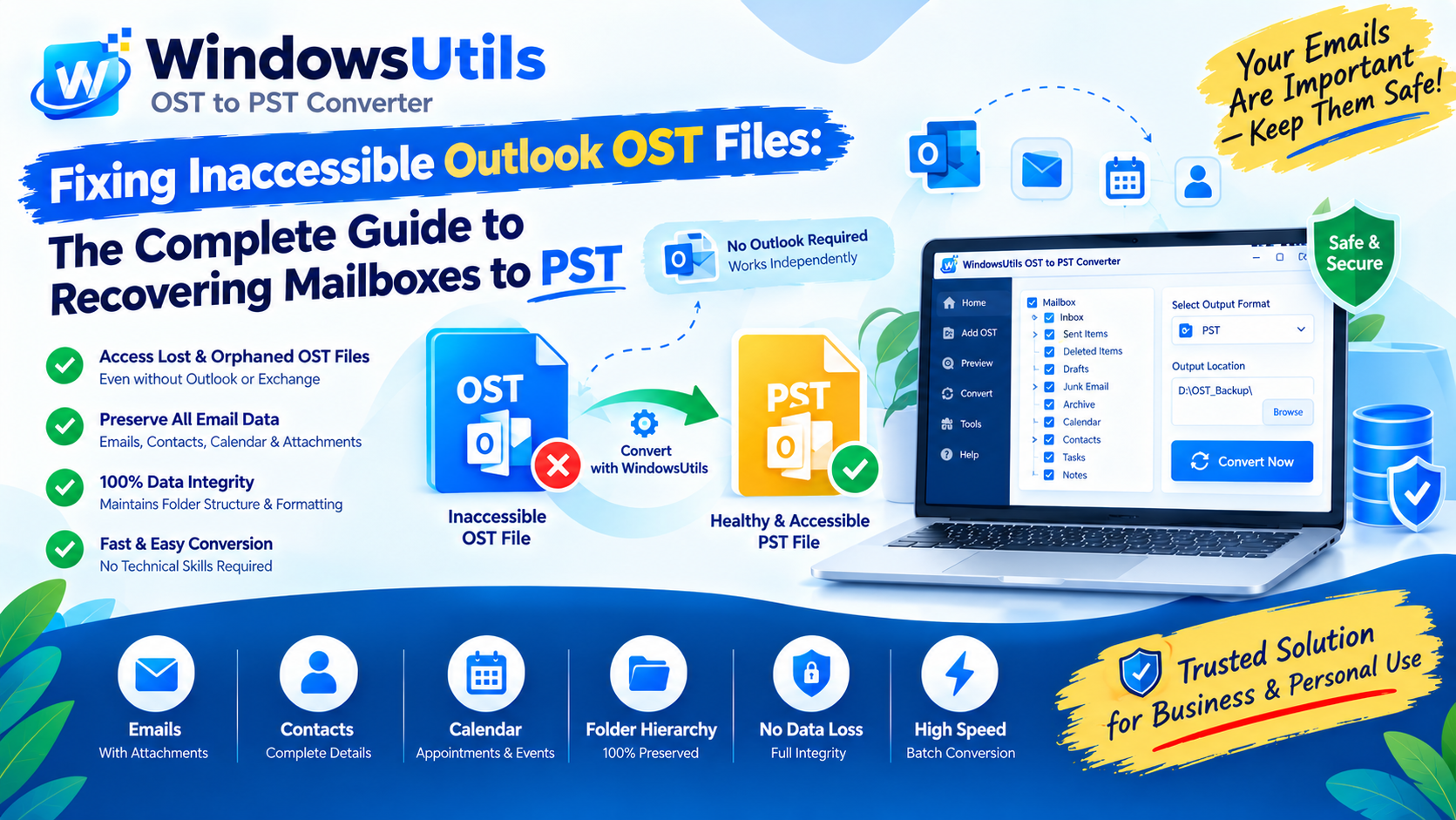
Fixing Inaccessible Outlook OST Files: The Complete Guide to Recovering Mailboxes to PST
Learn how to recover inaccessible or orphaned Outlook OST files to portable PST format without data loss. Covers native export and automated offline conversion methods.
 Email Migration
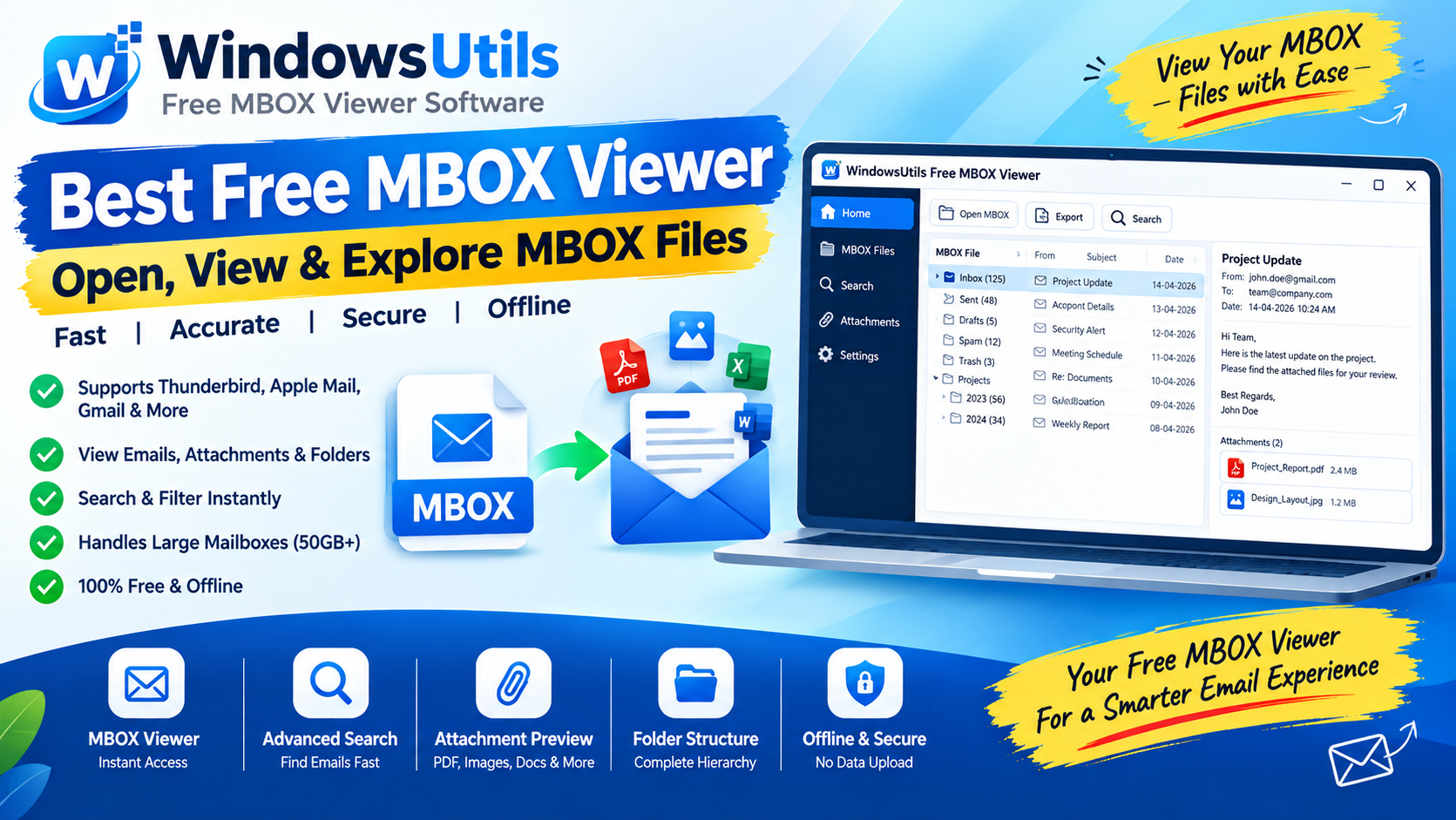
Exporting MBOX Mailboxes to Searchable PDF with Intact Attachments: 4 Tested Workflows
Step-by-step guide to converting MBOX email archives to high-fidelity PDF documents with embedded attachments. Ideal for legal, auditing, and archival workflows.
 Email Migration
Migrating Mozilla Thunderbird to Outlook & Microsoft 365: Step-by-Step Folder & Mail Transfer
Detailed walkthrough for moving emails, contact address books, and complete folder trees from Mozilla Thunderbird to Microsoft Outlook on Windows.